

ℹ️ Affiliate Disclosure: This article may contain affiliate links. We may earn a commission at no extra cost to you. Thanks for your support! ❤️
How the Best 3D Printer Software for Mac Improves Your Prints
Mac users aren’t exactly short on creative software, but 3D printing has historically been a little uneven on macOS. Some slicers were built with Windows users in mind first, while others ran on Mac but felt like an afterthought.
That situation has improved a lot.
Today, Mac users can choose from several capable 3D printer software options for FDM, resin, multi-material, and professional production workflows. Many now run smoothly on Apple Silicon, support Retina displays, and handle detailed models without the sluggish performance that used to be common.

The right software does more than convert an STL file into G-code. It influences support placement, seam visibility, surface finish, print time, material use, and even how often a print fails. A reliable slicer can make an average printer feel noticeably more capable. A poor profile can do the opposite.
This guide compares eight of the best 3D printer software options for Mac users, including free slicers, resin-focused tools, ecosystem-specific platforms, and paid software for more controlled workflows.
Why Choosing the Right 3D Printing Software for Mac Matters
It’s easy to think of slicing as a simple final step: import the model, choose a layer height, and press a button. In practice, the slicer makes hundreds of decisions before the printer moves.
It calculates extrusion paths, infill patterns, travel moves, cooling behavior, support placement, acceleration, and layer transitions. Those decisions affect nearly every visible part of the finished print.
Even a well-built printer can produce rough surfaces, weak walls, excessive stringing, or unnecessary supports when the slicing profile isn’t properly tuned. At the same time, a carefully prepared file can help a modest printer produce surprisingly clean results.
For Mac users, operating-system support matters too. A slicer may technically run on macOS but still feel dated, unstable, or unusually slow with large models. Native Apple Silicon support is especially useful when slicing complex parts, detailed miniatures, or full build plates.
Workflow is another factor.
A beginner may only need dependable presets, a clear preview, and basic support controls. Someone running several printers may care more about remote monitoring, cloud queues, plate organization, material tracking, and repeatable production profiles.
There isn’t one slicer that suits every printer and every type of user. The useful question is not simply, “Which software has the most settings?” It’s, “Which software gives me the level of control I actually need without making routine prints harder than they should be?”
Common Compatibility Challenges on macOS
Most major slicers now support macOS, but a few practical issues still come up.
Updates may occasionally arrive later for Mac than for Windows. This is more common with smaller proprietary applications than with large open-source projects.
Older Intel-only software can also rely on Apple’s translation layer rather than running natively on Apple Silicon. It may still function, but slicing can feel slower and memory use may be higher.
Security permissions are another small friction point. macOS sometimes blocks newly downloaded applications or asks for additional approval before allowing access to local network devices, removable drives, or printer connections.
These problems are usually manageable, but it’s worth checking recent release notes before committing to a slicer—especially if you’re using a newly released version of macOS.
Finding Models Before You Start Slicing
Slicing software is only one part of the workflow. You still need a printable model to bring into Cura, PrusaSlicer, OrcaSlicer, or whichever program you prefer.
Creative Fabrica’s 3D Printing section is worth browsing when you want ready-made 3D print files without spending hours searching across several marketplaces. The collection includes decorative objects, organizers, articulated models, seasonal designs, and practical projects for home or small-business use.
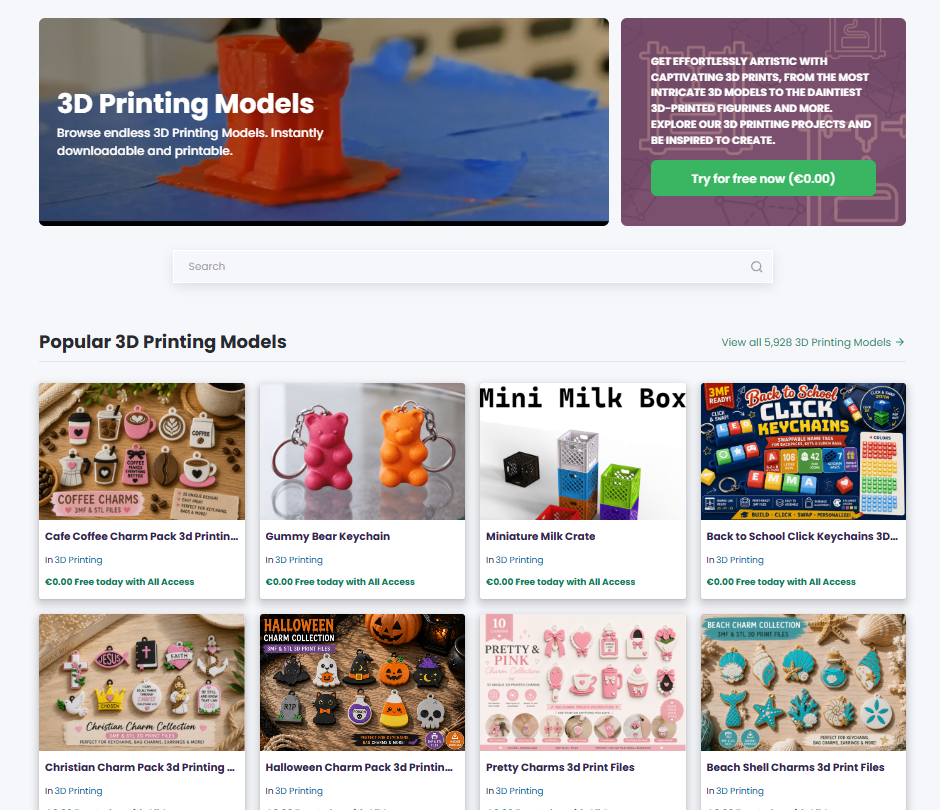
As with any downloaded model, check the dimensions, intended printing method, support requirements, and licensing details before slicing. Some files are nearly ready to print, while others benefit from resizing, reorientation, or lighter support placement. That small review usually matters more than the marketplace preview suggests.
Top 8 Best 3D Printer Software for Mac Users
1. Ultimaker Cura
Best for: Beginners and general FDM printing
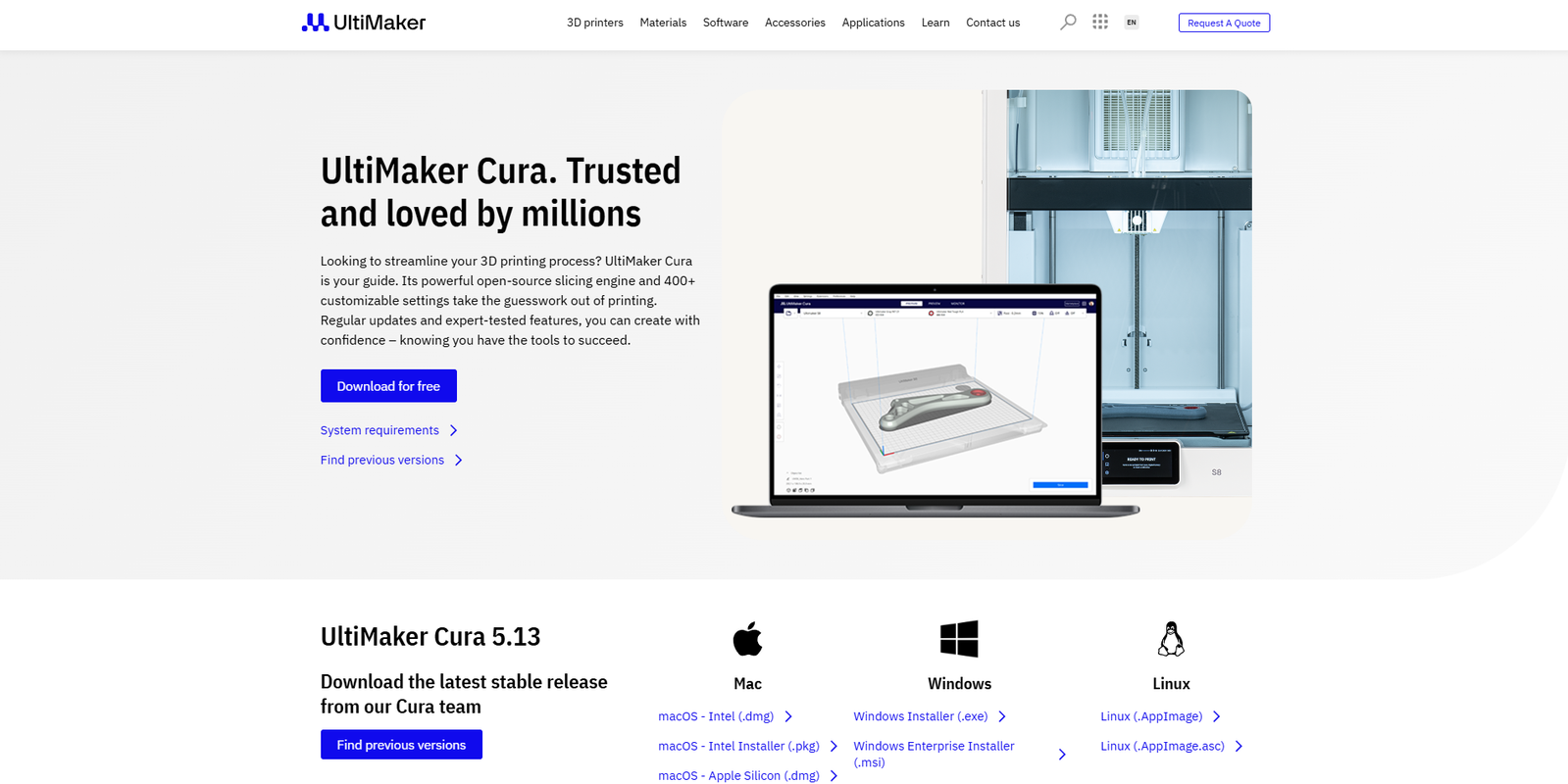
Ultimaker Cura remains one of the most familiar names in desktop 3D printing. It’s free, open source, widely supported, and compatible with a huge range of FDM printers.
Its biggest strength is flexibility.
A new user can stay in the simplified settings panel and prepare a print without touching much beyond material, layer height, infill, and supports. More experienced users can open the full settings list and adjust nearly every part of the toolpath.
Cura includes adaptive layers, tree supports, ironing, seam controls, custom material profiles, support blockers, and an extensive plugin marketplace. It also connects with Ultimaker’s broader Digital Factory ecosystem.
The interface is reasonably approachable, although Cura becomes visually dense once advanced settings are enabled. There are hundreds of options, and not all of them are clearly relevant to everyday printing.
Large or highly detailed models can also use a fair amount of memory. On newer M-series Macs this is generally manageable, but older machines may slow down when loading complex meshes or crowded build plates.
Still, Cura is one of the safest starting points for Mac users who own a printer without a strong proprietary software ecosystem.
Pros
- Free and open source
- Supports a very broad range of printers
- Large community and plenty of tutorials
- Extensive plugin ecosystem
- Good balance between presets and advanced control
Cons
- Advanced settings can feel overwhelming
- Large models may use considerable memory
- Default profiles vary in quality between printer brands
2. PrusaSlicer
Best for: High-quality prints and detailed customization
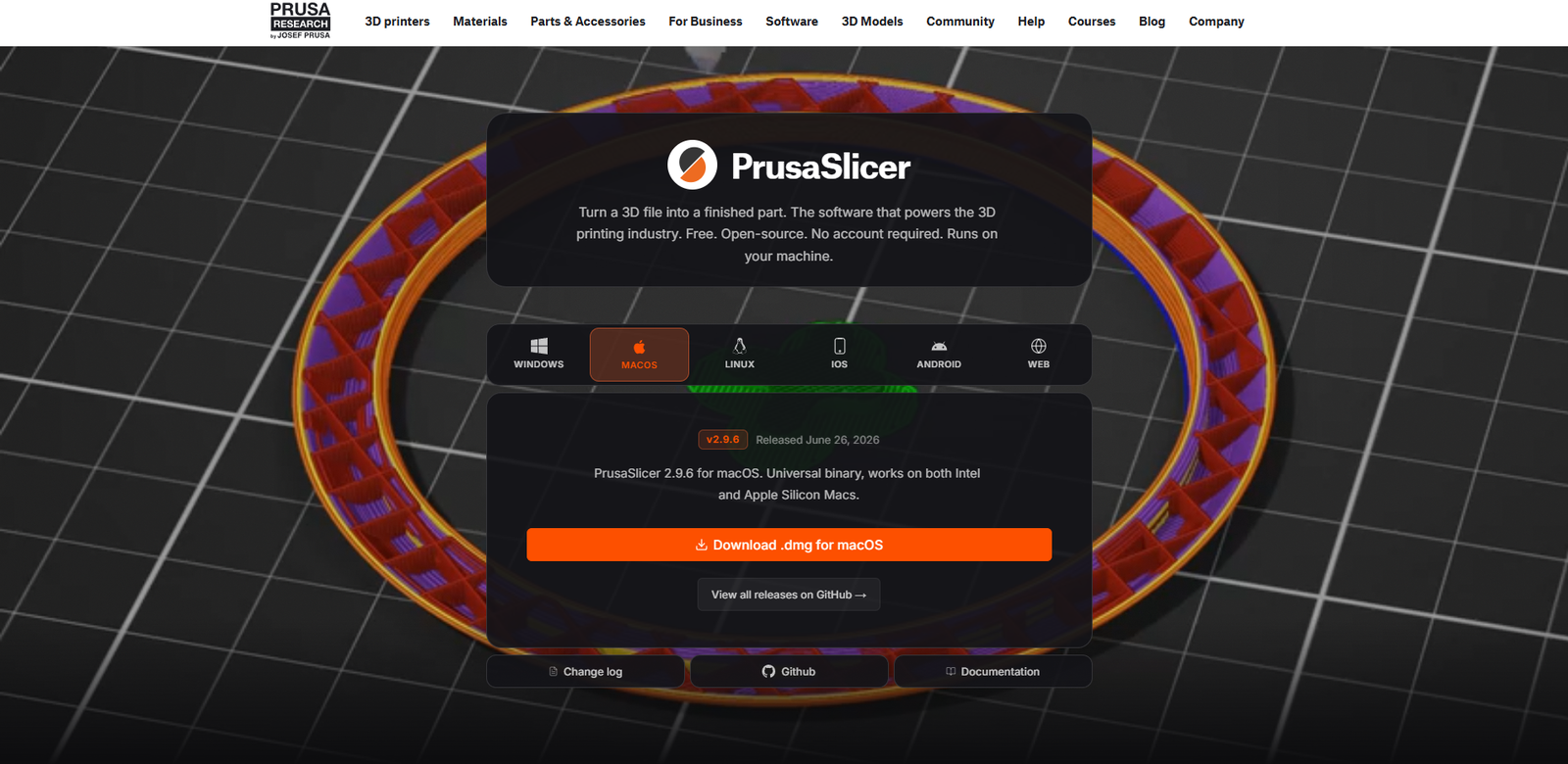
PrusaSlicer began as software for Prusa printers, but it has grown into a much broader tool. Many users run it with third-party machines because of its clean toolpaths, practical support controls, and well-organized advanced settings.
The software feels more technical than Cura, though not necessarily more confusing. Settings are divided into Print, Filament, and Printer profiles, which makes it easier to understand where a change belongs.
Its organic supports are particularly useful for models with irregular overhangs. They often use less material than traditional supports and can be easier to remove. Paint-on supports, variable layer height, modifier meshes, sequential printing, and detailed seam placement add more control.
The layer preview is also excellent. Color coding makes it easier to inspect extrusion width, speed, feature type, volumetric flow, and other toolpath details.
PrusaSlicer is especially appealing when you want to understand why a print behaves a certain way rather than relying entirely on automatic settings.
The main limitation is that third-party printer setup sometimes requires more effort. Community profiles are widely available, but they’re not always equally polished.
Pros
- Free and open source
- Strong layer preview
- Excellent organic and paint-on supports
- Detailed profile management
- Frequent development and updates
Cons
- Third-party printer profiles may need adjustment
- The interface is less beginner-oriented than some alternatives
- Deep settings can take time to learn
3. OrcaSlicer
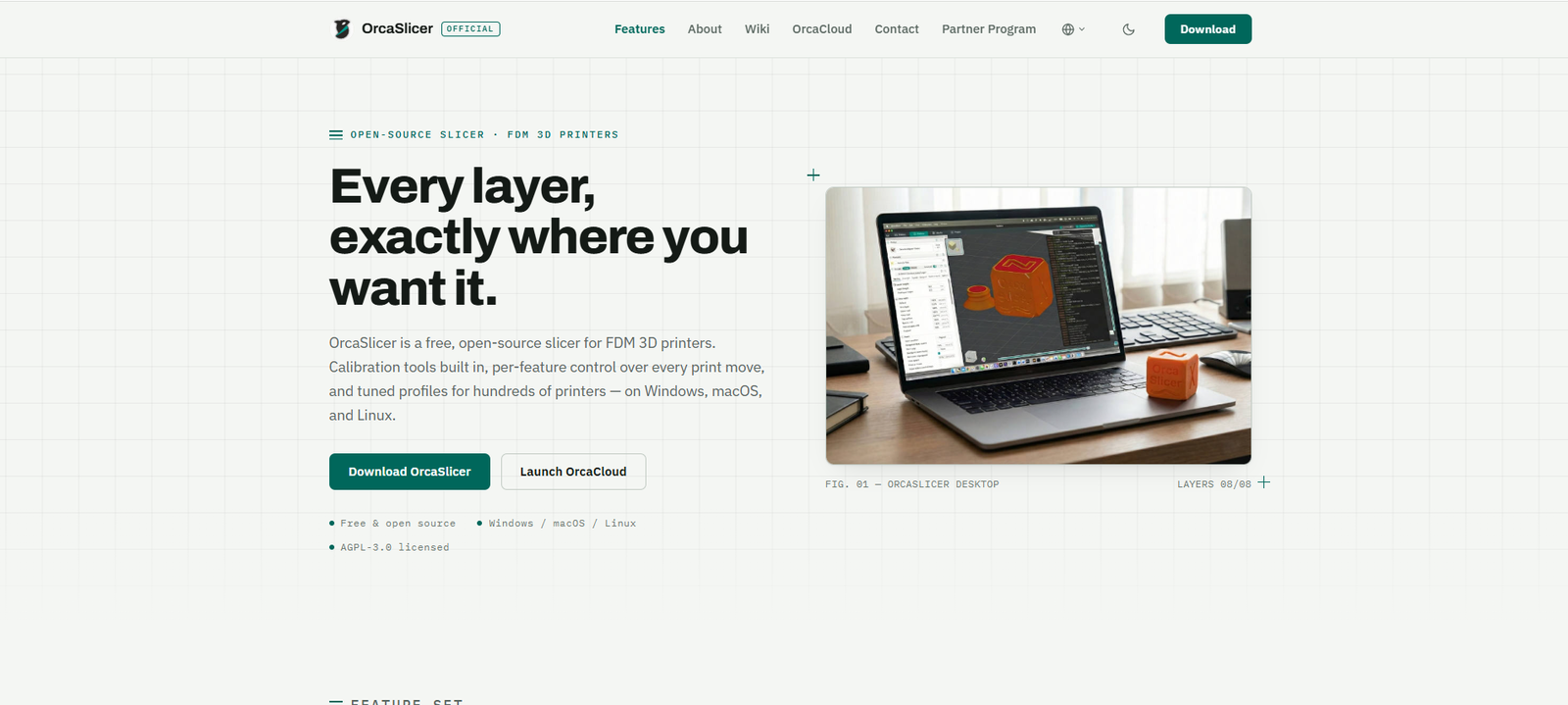
Best for: Calibration and performance tuning
OrcaSlicer has become popular among users who want more control over calibration without relying on a collection of unrelated test files.
It builds on ideas and code from Bambu Studio and PrusaSlicer, but its identity is increasingly centered on tuning. Built-in tests cover flow rate, pressure advance, temperature, retraction, maximum volumetric speed, and other settings that directly affect print quality.
That makes OrcaSlicer particularly useful when changing filament brands, experimenting with faster printing, or trying to reduce ringing, under-extrusion, and inconsistent surfaces.
Its interface will feel familiar to anyone who has used Bambu Studio or PrusaSlicer. The layout is relatively clean, but there’s a lot beneath the surface. It rewards users who are willing to inspect settings rather than staying with defaults indefinitely.
One thing worth noting: calibration tools don’t remove the need to understand what you’re looking at. The software can generate the test, but the user still has to interpret the result correctly.
For people who enjoy tuning machines and materials, OrcaSlicer is one of the most capable free options available on Mac.
Pros
- Free and open source
- Excellent built-in calibration tools
- Strong support for modern high-speed printers
- Detailed filament and machine profiles
- Useful plate and project organization
Cons
- More technical than beginner-focused slicers
- Some printer profiles need manual setup
- Frequent development can occasionally introduce interface changes
4. Bambu Studio
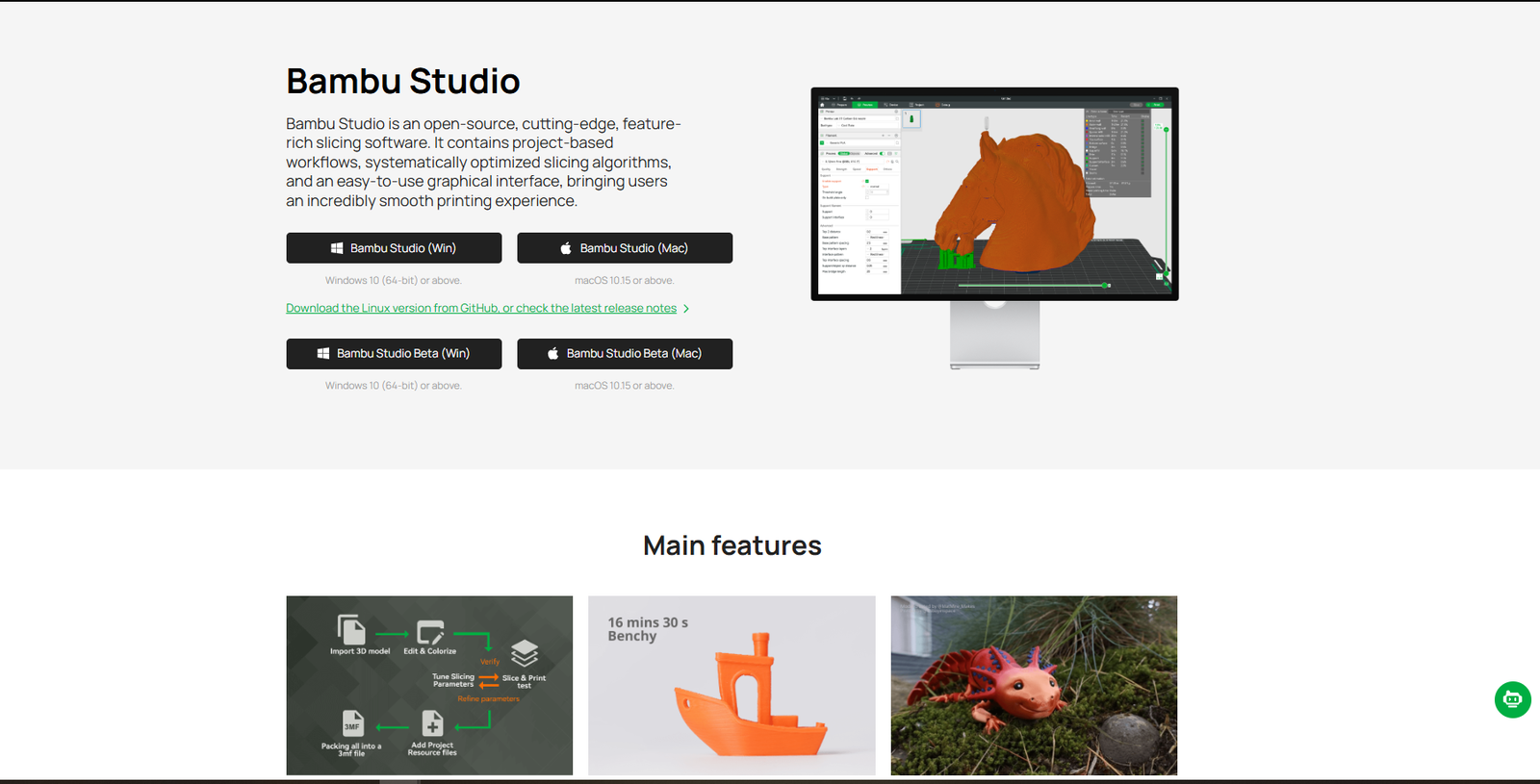
Best for: Bambu Lab printers and multi-material workflows
Bambu Studio is designed around Bambu Lab hardware, and that close integration is the main reason to use it.
Printer setup, slicing, cloud transfer, camera monitoring, plate management, and AMS material assignment all happen in one interface. For owners of Bambu printers, the workflow is unusually cohesive.
The software includes automatic model arrangement, support painting, variable layer height, multiple build plates, filament mapping, and remote printer control. Multi-color preparation is also more approachable than in many general-purpose slicers.
Bambu Studio can be used with some non-Bambu printers, but that isn’t where it feels strongest. The real advantage comes from letting the software communicate directly with the printer and its accessories.
Cloud dependence may be a consideration for some users. Local network options exist for certain workflows, but people who prefer fully offline production may find the ecosystem less appealing than a traditional slicer.
For Bambu Lab owners, though, it’s difficult to ignore how much routine friction the software removes.
Pros
- Smooth integration with Bambu Lab printers
- Strong AMS and multi-color tools
- Remote monitoring and cloud transfer
- Clear plate-based project organization
- Good default profiles
Cons
- Most useful inside the Bambu ecosystem
- Cloud features may not suit every workflow
- Less appealing for users who want a hardware-neutral slicer
5. Lychee Slicer
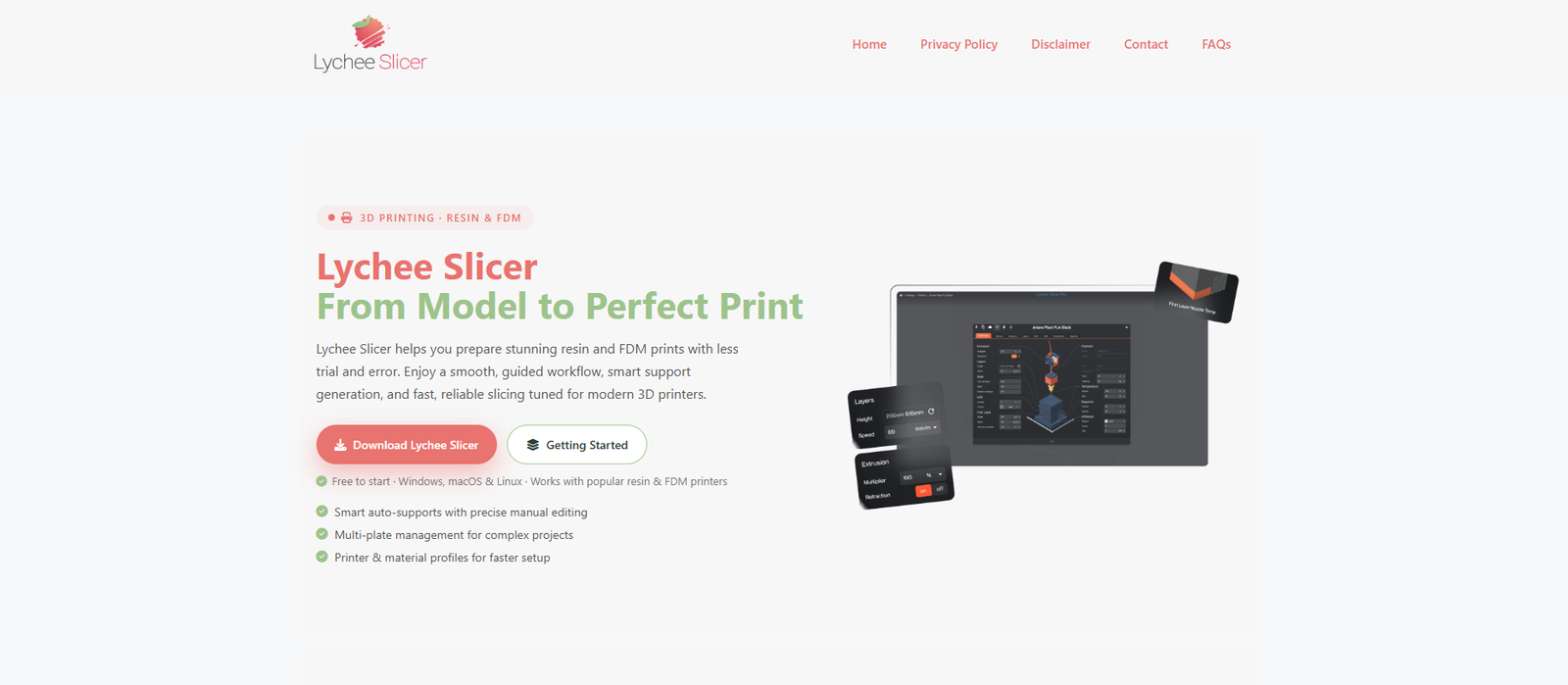
Best for: Resin printing and manual support control
Lychee Slicer is built specifically for resin workflows. That distinction matters because resin preparation involves different problems from FDM slicing.
Instead of focusing on extrusion paths and infill, Lychee helps with model orientation, hollowing, drainage, support structure, island detection, exposure profiles, and peel forces.
Its support tools are one of the main reasons users choose it. Automatic supports provide a starting point, but manual editing is where the software becomes more useful. You can adjust support tips, braces, density, and placement with much more control than a basic one-click workflow allows.
The interface is polished and visual, which makes it approachable for miniature painters, character model creators, jewelry designers, and other users working with detailed resin parts.
Like most resin slicers, it still requires careful inspection. Automatic supports can miss difficult islands or place marks on visible surfaces. Rotating the model and checking contact points remains part of the process.
Lychee offers a free version, while more advanced tools are available through paid plans.
Pros
- Designed specifically for resin printing
- Strong automatic and manual support tools
- Good island detection and model preparation
- Broad resin printer compatibility
- Clear, modern interface
Cons
- Some useful features require a paid plan
- Automatic supports still need manual review
- Not intended for FDM printing
6. Simplify3D
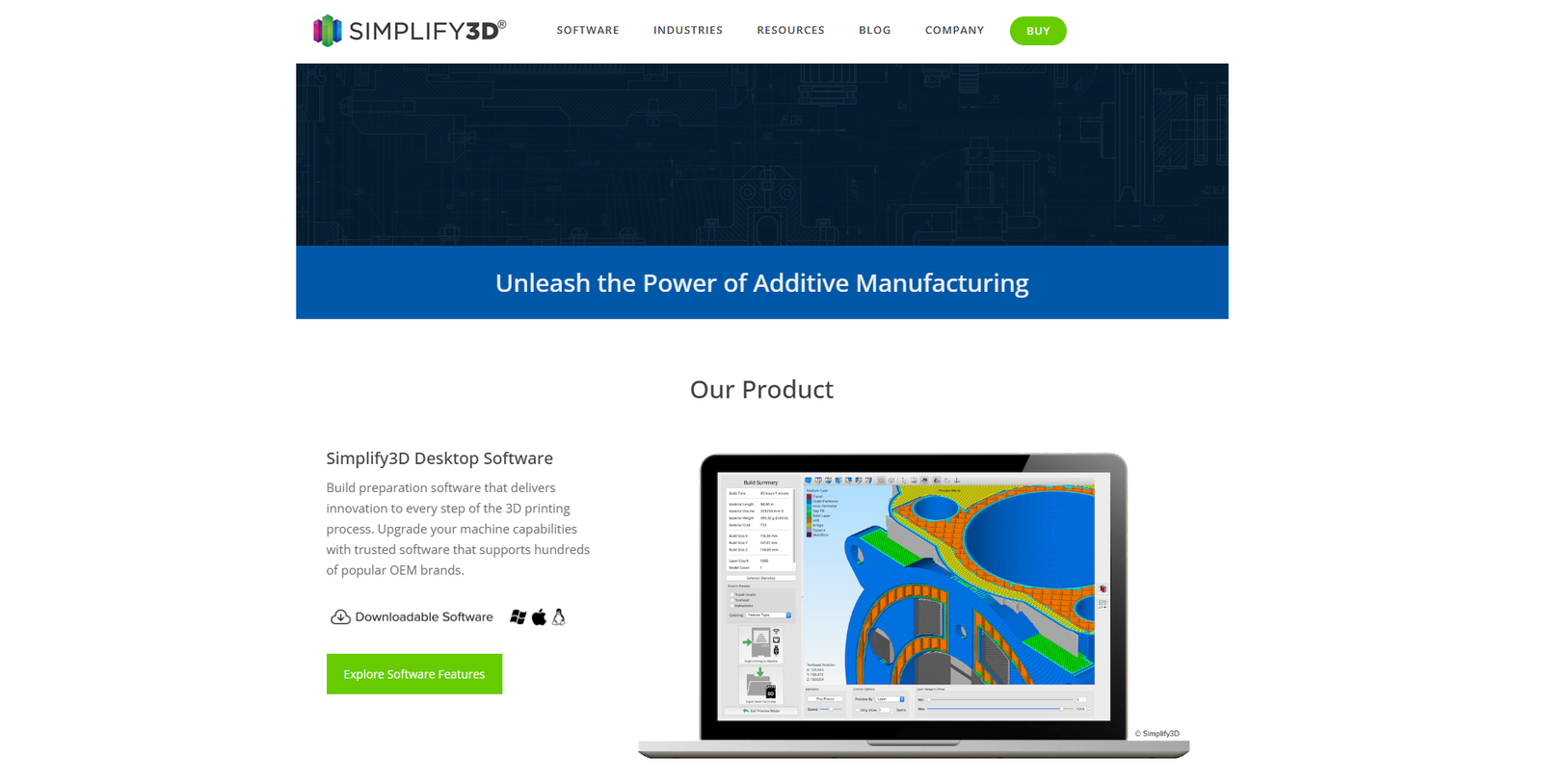
Best for: Controlled professional FDM workflows
Simplify3D was once the default premium recommendation for serious FDM users. The market has changed, and free slicers now include many features that were previously unusual. Even so, Simplify3D still appeals to users who value its process-based workflow and direct control.
One of its more useful features is the ability to apply different processes to separate regions or height ranges of a model. This can be helpful when a part needs different infill, layer height, speed, or support behavior in specific areas.
Its custom support tools are straightforward, and the print preview remains easy to inspect. The interface is less cluttered than some open-source slicers, although it can also feel dated beside newer applications.
The main question is value.
Because Cura, PrusaSlicer, and OrcaSlicer are free, Simplify3D has to justify its license through workflow preference, printer compatibility, or production consistency. It isn’t automatically better simply because it’s paid.
For users who already have established profiles and processes in Simplify3D, moving away may not be worthwhile. New users should compare it carefully with current free alternatives before purchasing.
Pros
- Detailed process control
- Flexible settings for different model regions
- Clear support editing
- Broad printer compatibility
- Useful for repeatable production workflows
Cons
- Requires a paid license
- Free alternatives now offer many similar features
- Interface may feel dated
- Less community-driven than open-source slicers
7. ideaMaker
Best for: Flexible print preparation and Raise3D workflows
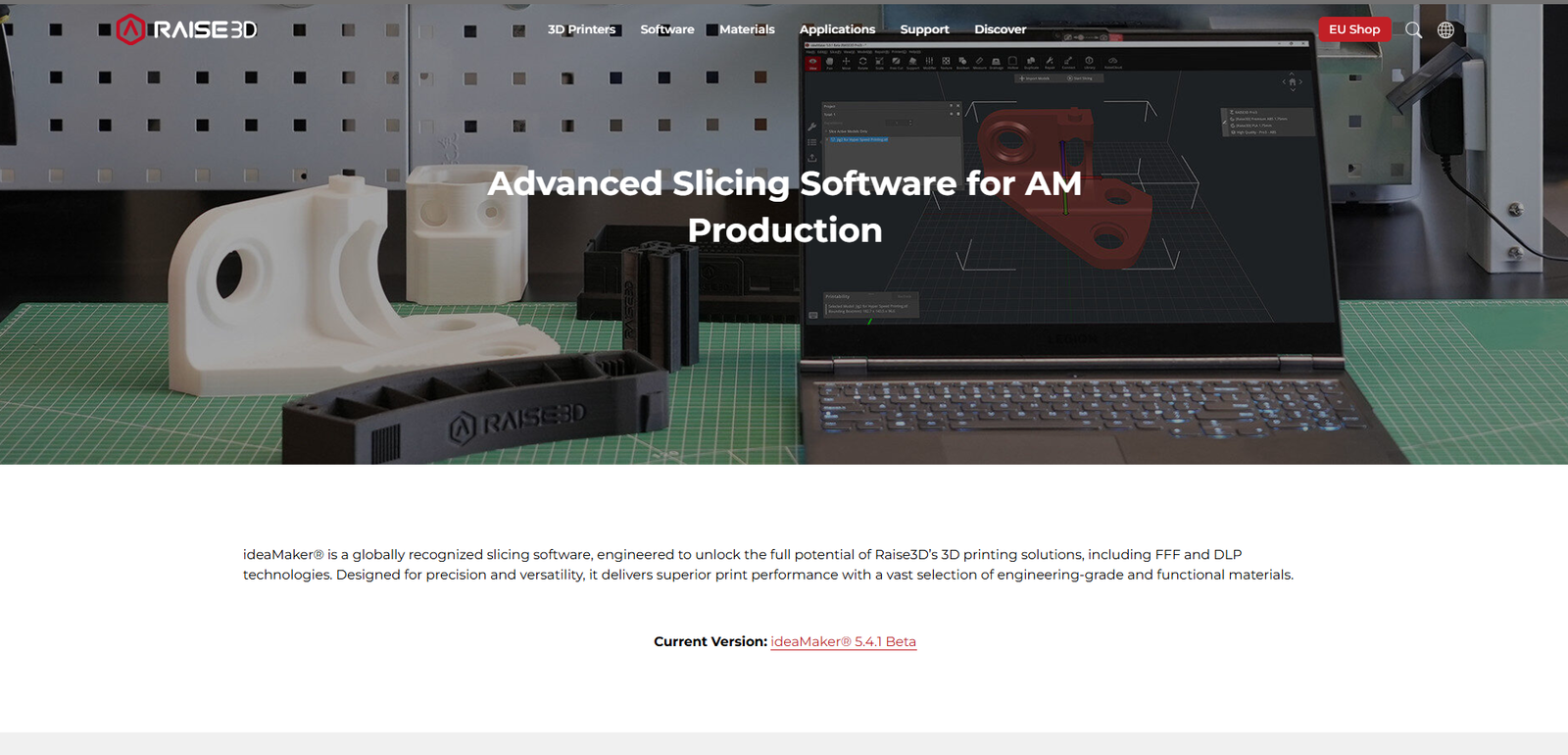
ideaMaker is developed by Raise3D, but it supports more than Raise3D printers. It sits somewhere between an accessible slicer and a professional production tool.
The interface is cleaner than many highly technical slicers, and common controls are relatively easy to find. Features include automatic and manual supports, modifier tools, texture generation, multiple printer profiles, remote monitoring, and cloud-based project management.
Its texture feature is particularly interesting. It can apply surface patterns to a model without requiring the user to edit the original geometry in separate CAD software. This won’t suit every project, but it can add visual detail to decorative prints, containers, planters, and branded objects.
ideaMaker also handles profile sharing and printer management reasonably well, which is useful for classrooms, workshops, and small print operations.
The community is smaller than Cura’s or PrusaSlicer’s, so troubleshooting obscure third-party printer profiles may take more effort.
Pros
- Free to use
- Clean interface
- Useful texture-generation tools
- Supports multiple printer brands
- Cloud and remote-management features
Cons
- Smaller community than Cura or PrusaSlicer
- Third-party profiles may require tuning
- Some features are more valuable with Raise3D hardware
8. ChiTuBox
Best for: LCD and MSLA resin printers
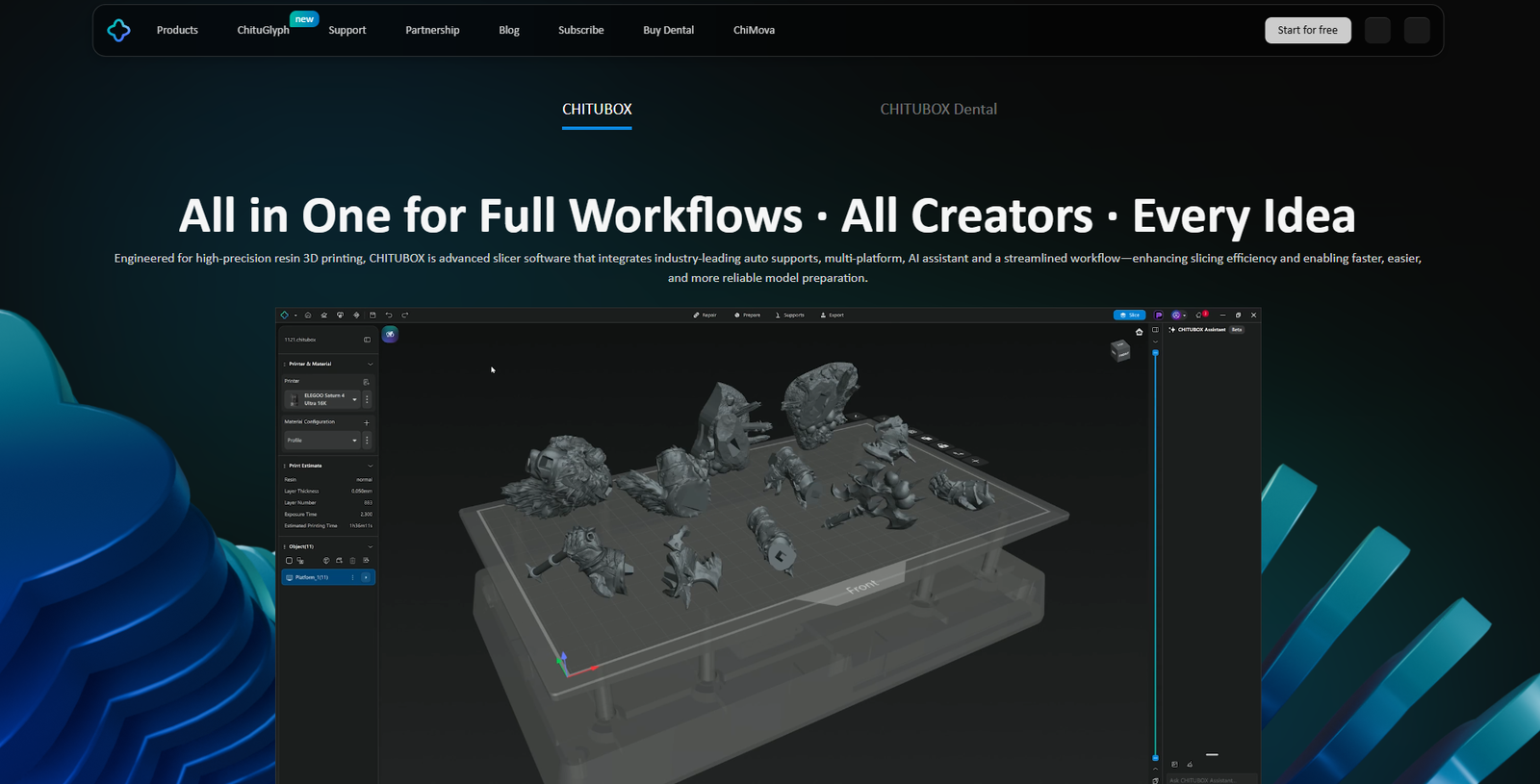
ChiTuBox is one of the most established slicers for desktop resin printing, particularly for machines built around ChiTu-based control systems.
It includes hollowing, drain-hole placement, automatic supports, manual support editing, island checking, model repair, and exposure controls. Printer support is broad, especially among common consumer MSLA brands.
The interface is functional rather than especially elegant. New users can prepare a file quickly, but support editing becomes more efficient after learning the selection and placement tools.
Hollowing and drainage deserve careful attention. The software makes these tasks easier, but poor drain-hole placement can still trap resin inside a model. That’s a print-preparation issue no automatic tool can fully solve without user judgment.
ChiTuBox offers both free and paid versions. The free edition is enough for many hobby users, while the Pro version adds more advanced preparation and productivity features.
Pros
- Broad support for resin printers
- Useful hollowing and drain-hole tools
- Automatic and manual support editing
- Established user community
- Free version available
Cons
- Interface can feel less polished than Lychee
- Some advanced tools require the paid version
- Automatic supports need careful inspection
- Not suitable for FDM printers
Feature Comparison Table
| Software | Best For | Free Version | Apple Silicon Support | Printer Type |
|---|---|---|---|---|
| Ultimaker Cura | General FDM printing | Yes | Yes | FDM |
| PrusaSlicer | Advanced customization | Yes | Yes | FDM |
| OrcaSlicer | Calibration and tuning | Yes | Yes | FDM |
| Bambu Studio | Bambu Lab printers | Yes | Yes | FDM |
| Lychee Slicer | Resin printing | Yes | Yes | SLA/MSLA |
| Simplify3D | Controlled professional workflows | No | Yes | FDM |
| ideaMaker | Flexible print preparation | Yes | Yes | FDM |
| ChiTuBox | LCD resin printers | Yes | Yes | SLA/MSLA |
How to Choose the Best 3D Printing Software for Your Needs
The most popular slicer isn’t necessarily the right one for your setup.
Start with your printer type. FDM and resin machines need completely different preparation tools, so there’s little value in comparing Cura directly with Lychee as though they solve the same problem.
Next, think about how much control you actually want.
Some users enjoy adjusting acceleration, extrusion width, pressure advance, seam placement, support interfaces, and volumetric flow. Others mainly want dependable presets and a clear preview before printing.
Both approaches are valid.
A slicer packed with advanced settings can be useful, but it can also encourage unnecessary tinkering. Changing several parameters at once often makes troubleshooting harder because you no longer know which adjustment caused the result.
Printer ecosystem also matters. Bambu Studio is an obvious option for a Bambu Lab machine because it handles hardware communication and AMS mapping so smoothly. Prusa owners benefit from the refined profiles inside PrusaSlicer. Raise3D users may prefer ideaMaker for similar reasons.
For a more hardware-neutral setup, Cura, PrusaSlicer, and OrcaSlicer are usually the strongest starting points.
Conclusion
Mac users now have a strong selection of 3D printing software for nearly every type of workflow.
Ultimaker Cura remains a dependable all-purpose option with broad printer compatibility. PrusaSlicer offers excellent control and a particularly useful toolpath preview. OrcaSlicer stands out for calibration and performance tuning, while Bambu Studio provides the smoothest experience for Bambu Lab owners.
For resin printing, Lychee Slicer offers polished support tools and a clean workspace, while ChiTuBox remains widely compatible with consumer MSLA printers. ideaMaker is a capable middle ground with useful preparation and management features. Simplify3D still has value for users who prefer its process-based workflow, although its paid license is harder to justify now that free slicers have become so capable.
The best approach is to test two or three options with the same model and printer. Pay attention not only to surface quality, but also to setup time, support removal, preview clarity, and how easy it is to repeat a successful print.
That’s usually more revealing than comparing feature lists.
Frequently Asked Questions
What is the best free 3D printer software for Mac?
Ultimaker Cura, PrusaSlicer, and OrcaSlicer are among the strongest free options for FDM printing on Mac. Cura is approachable and broadly compatible, PrusaSlicer offers detailed customization, and OrcaSlicer includes particularly useful calibration tools.
Does Cura work on Apple Silicon Macs?
Recent Cura releases support modern Macs, including Apple Silicon systems. Performance can still depend on model complexity, available memory, plugins, and the specific Cura version being used.
Which software is best for resin printing on a Mac?
Lychee Slicer and ChiTuBox are two of the most widely used options for SLA and MSLA resin printing. Lychee has a more polished support workflow, while ChiTuBox offers broad compatibility with many consumer resin printers.
Is Simplify3D worth paying for?
It can be worthwhile for users who already rely on its process controls, custom supports, and established production profiles. New users should compare it with Cura, PrusaSlicer, and OrcaSlicer first, since those free tools now cover many of the same tasks.
Can I use one slicer for multiple printer brands?
Yes. Cura, PrusaSlicer, OrcaSlicer, and ideaMaker can all be configured for multiple printer brands. Results depend on the quality of the machine profile, so third-party printers may need manual tuning before the software produces consistently reliable prints.


Follow Us