
ℹ️ Affiliate Disclosure: This article may contain affiliate links. We may earn a commission at no extra cost to you. Thanks for your support! ❤️
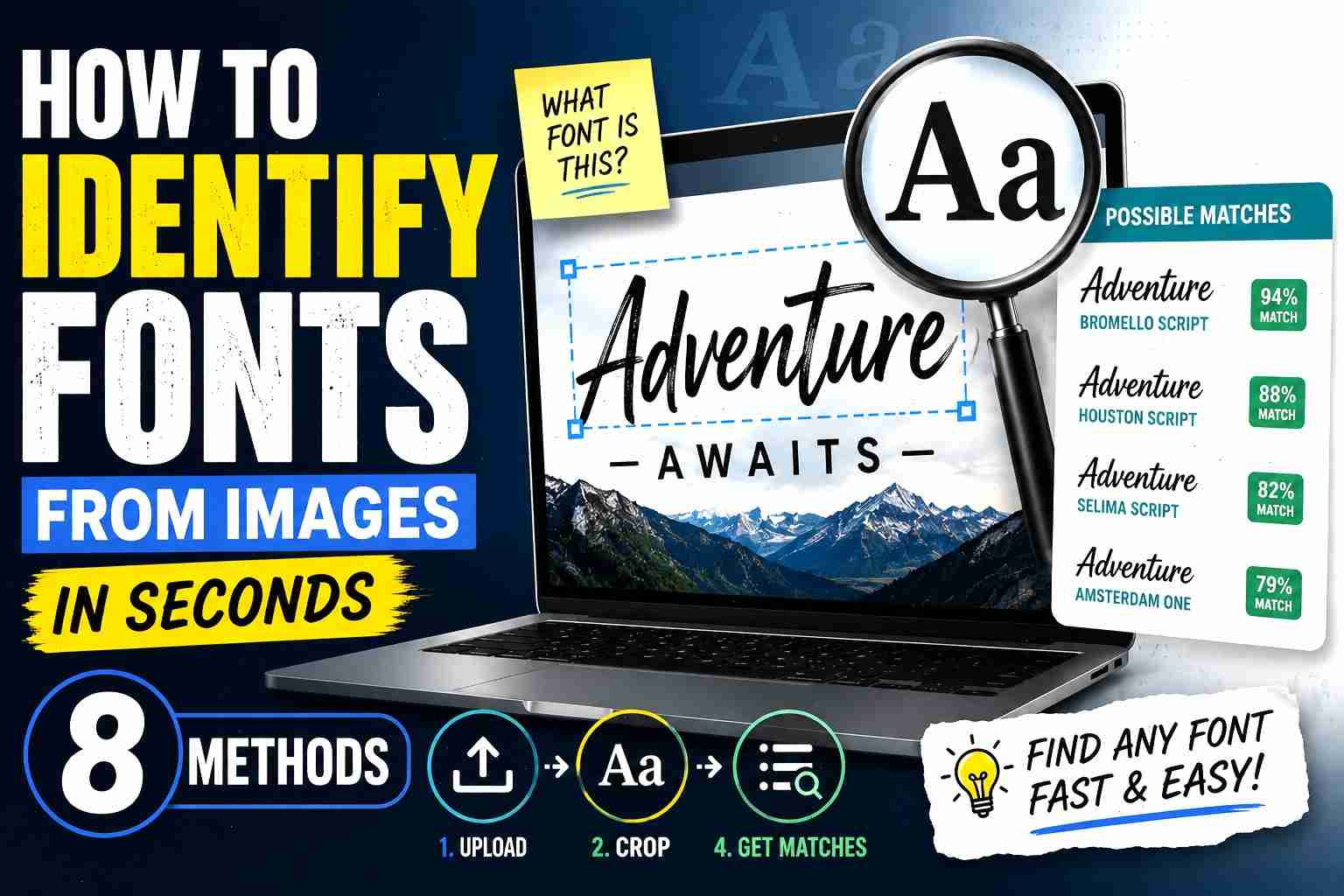
How to Identify Fonts From Images in Seconds (8 Methods)
Typography shows up everywhere once you start noticing it. Netflix thumbnails, coffee packaging, YouTube banners, restaurant menus, startup logos. Sometimes a font catches your eye immediately and you end up spending 20 minutes trying to figure out what it is.
If you design thumbnails, build websites, make Pinterest pins, edit videos, or even work on school presentations, font identification saves a ridiculous amount of time. Instead of scrolling through endless font libraries hoping something looks “close enough,” you can upload an image and narrow things down almost instantly.
Most modern font finder tools use OCR (Optical Character Recognition) mixed with AI-based pattern matching. Basically, they analyze the shape of letters and compare them against massive font databases.
This guide walks through 8 practical methods that actually work — from AI scanners to typography communities that can identify obscure fonts faster than some software.
Method 1 – Use WhatTheFont
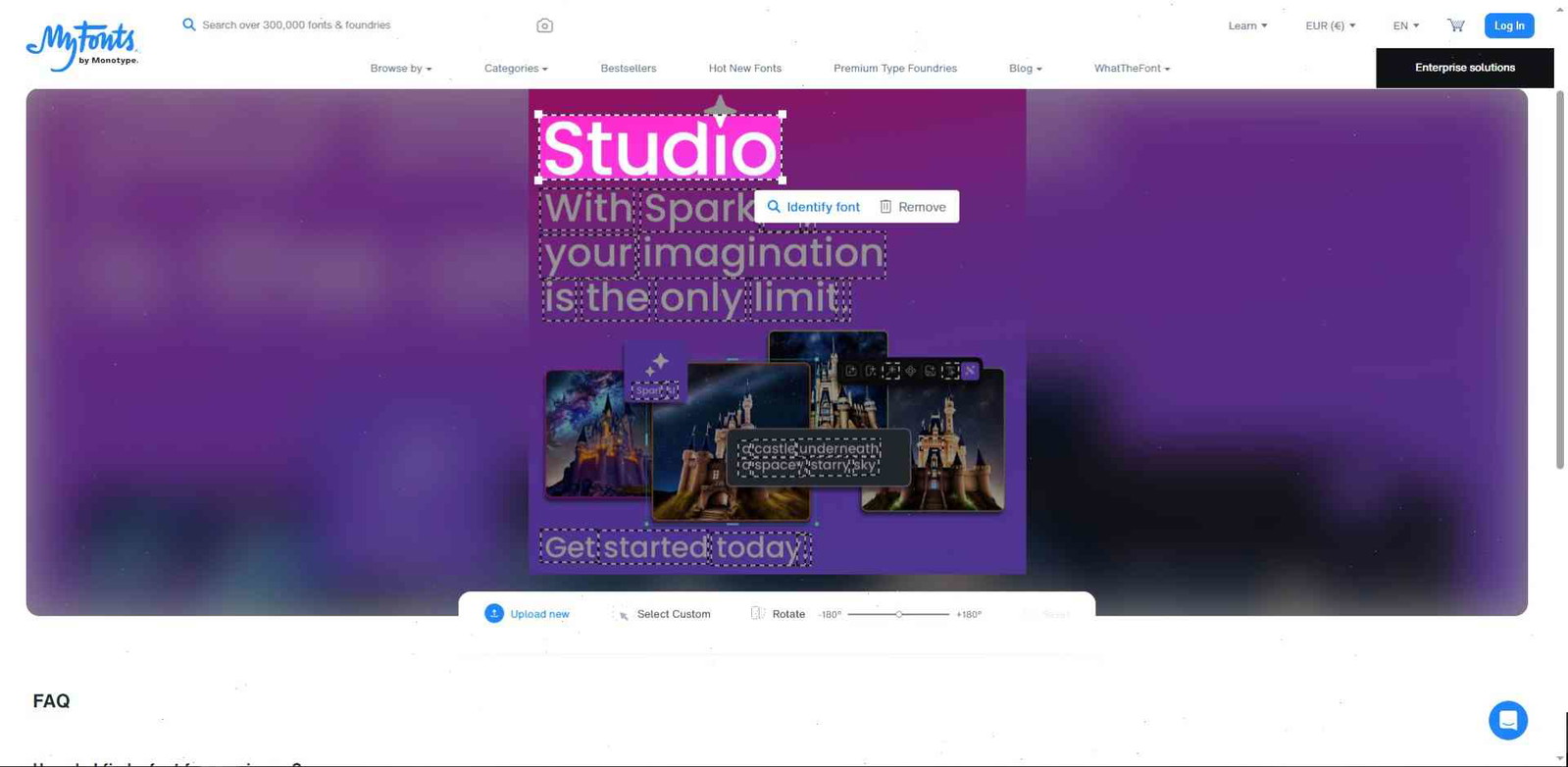
One of the easiest font identification tools online is WhatTheFont by MyFonts.
What I like about WhatTheFont is how fast it feels. There’s basically no learning curve.
How It Works
- Open the website
- Upload a screenshot or photo
- Crop around the typography
- Let the AI scan the image
- Review matching fonts
That’s it.
It works especially well with:
- Clean website typography
- Posters
- Social media graphics
- Standard serif and sans-serif fonts
There’s also a mobile app, which is surprisingly useful. I tested it once on café signage just out of curiosity and it actually recognized the font correctly from a phone photo.
Pros
- Very beginner-friendly
- Fast detection
- Huge font database
- Good mobile experience
- Strong with standard fonts
It struggles more with:
Limitations
- Heavily edited logos
- Distorted text
- Super decorative fonts
- Blurry screenshots
Another thing worth mentioning: many matches are commercial fonts. So even if you identify the font, you may still need to buy a license.
Still, for quick font recognition, it’s one of the best starting points.
Method 2 – Try FontSquirrel Matcherator
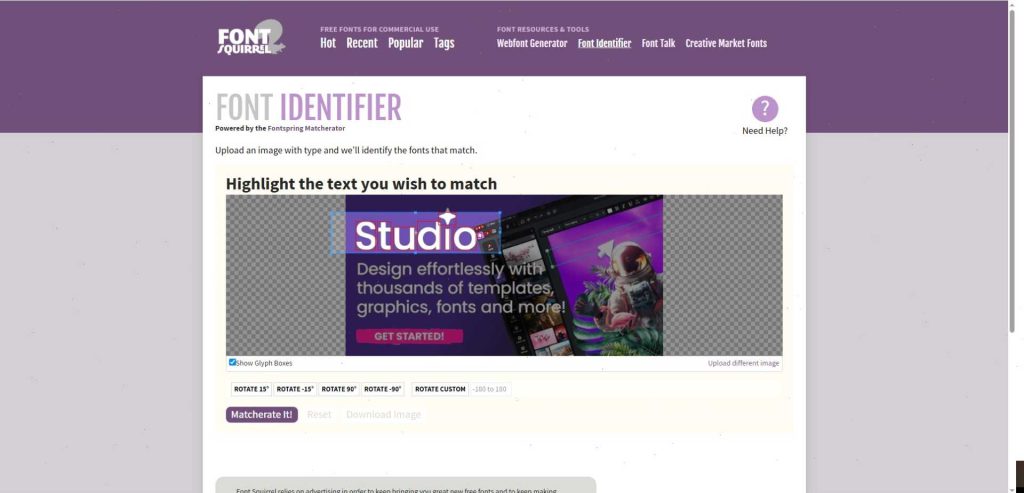
FontSquirrel is mostly known for free fonts, but its Matcherator tool is honestly underrated.
Matcherator can scan screenshots and suggest multiple font matches using drag-and-drop image recognition.
What makes FontSquirrel different is the focus on free alternatives.
That’s helpful if you’re:
- A freelancer
- Running a small blog
- Designing for Etsy
- Working on side projects
- Trying to avoid expensive font licenses
Features I Actually Found Useful
- Side-by-side font previews
- Free alternatives
- Community discussions
- Multiple matching suggestions
The side-by-side preview comparison helps a lot because sometimes the technically “correct” font doesn’t visually feel right for your project.
Matcherator also performs pretty well with logos and branding styles. Not always exact matches, but often very close.
And honestly, sometimes “close enough” is perfectly fine.
Method 3 – Identify Fonts With WhatFontIs
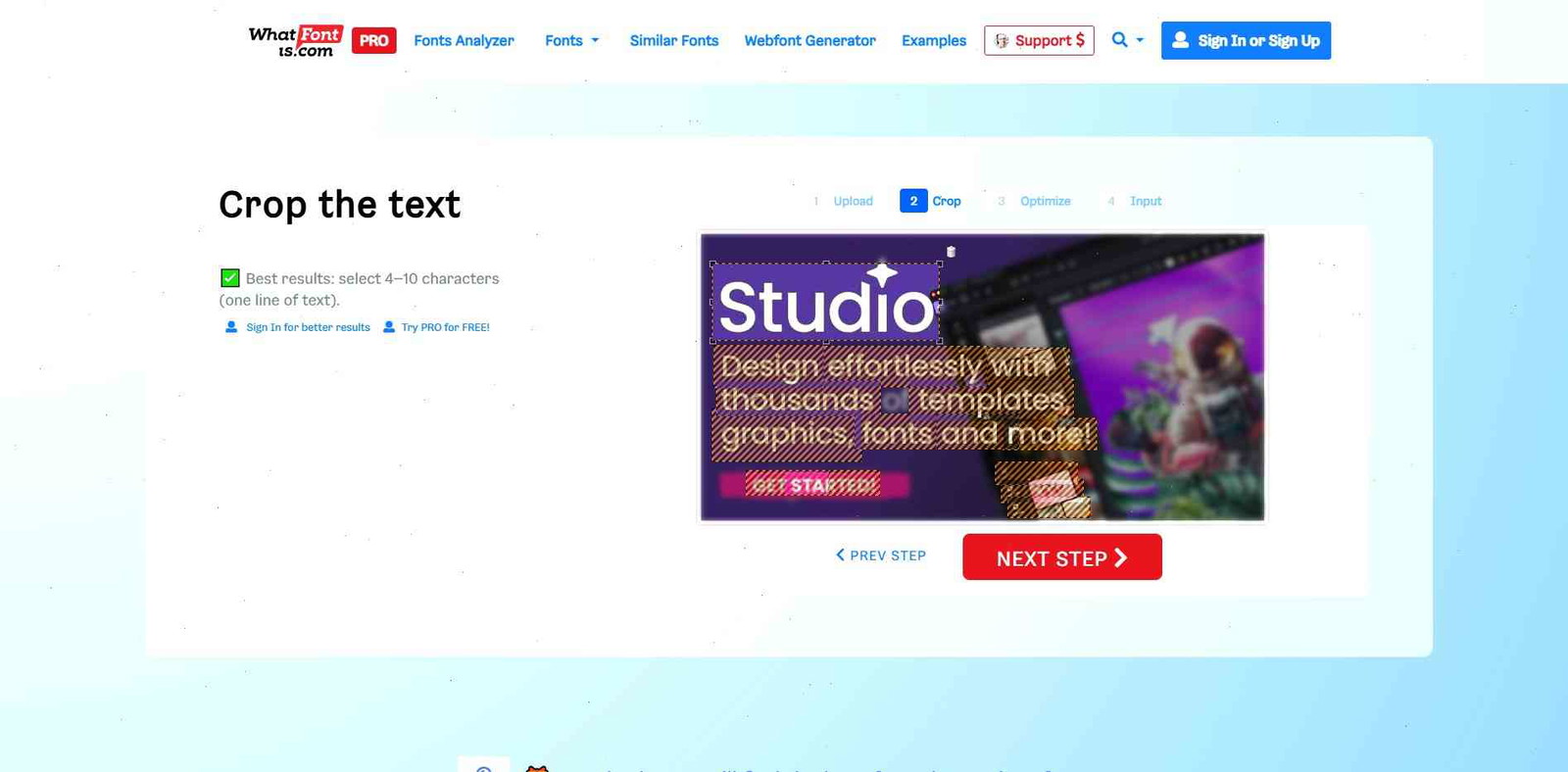
WhatFontis has one of the biggest font databases online.
Users can upload an image, select the target text, and receive suggestions for a suitable font from both free and commercial libraries.
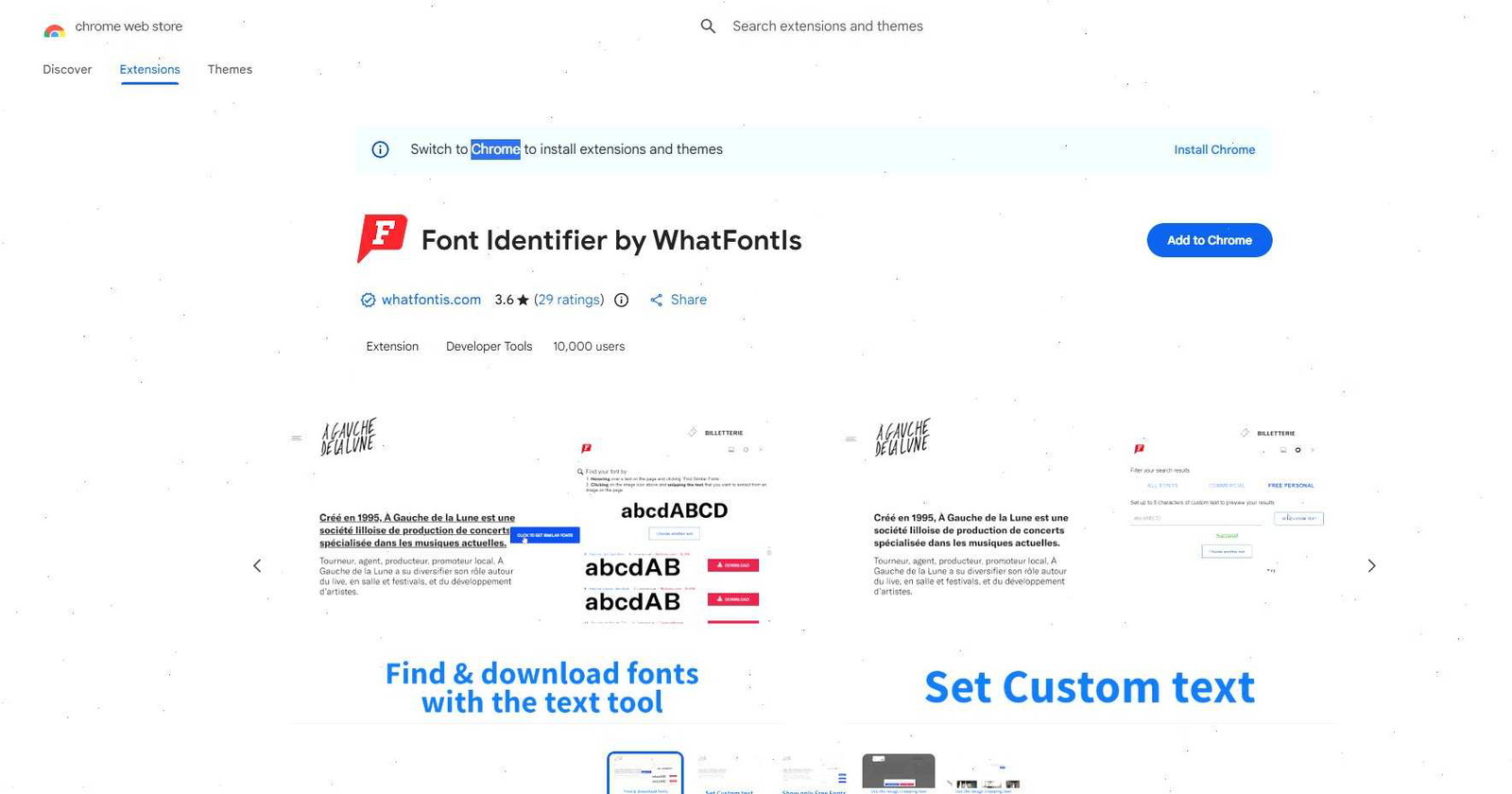
This tool is especially good when:
- Other tools fail
- The font is obscure
- You need free alternatives
- You want browser-based detection
What Makes It Different
The database size.
It scans hundreds of thousands of fonts, which gives it a better chance with unusual typography.
I’ve noticed it’s particularly useful for:
- Startup branding fonts
- Modern display fonts
- Website typography
- Pinterest-style aesthetics
Free vs Paid Version
The free version works fine for casual use, though there are ads.
The paid version adds:
- Better filters
- More accurate suggestions
- Google Fonts integration
- Ad-free browsing
One feature I genuinely like is the “Similar Fonts” section. Sometimes the exact font is expensive or unavailable, and the alternatives end up looking even better anyway.
Method 4 – Use Fontspring Matcherator
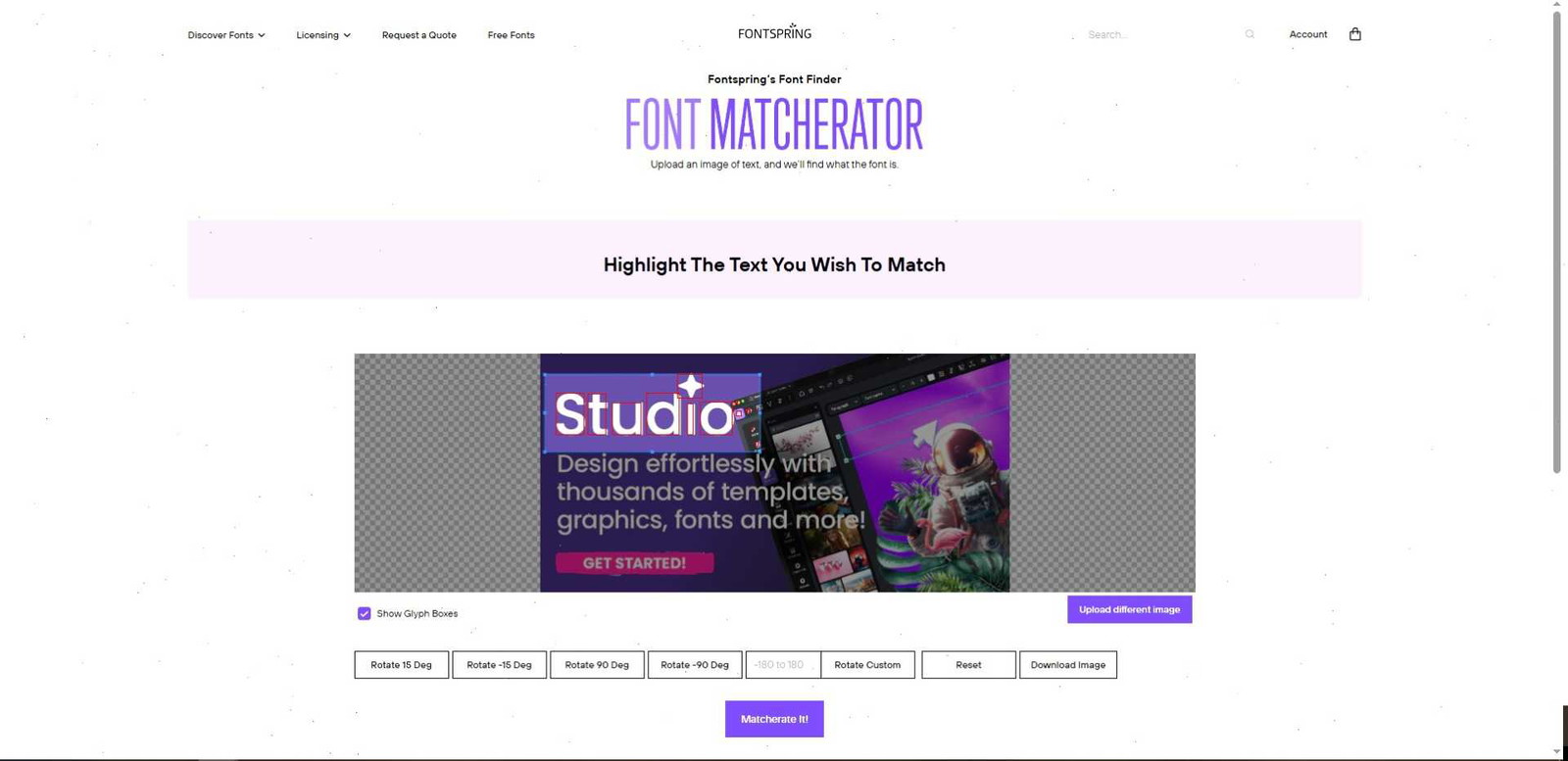
Fontspring Matcherator is more precision-focused compared to some faster tools.
According to the uploaded guide, users upload an image, isolate the typography, and let the engine analyze spacing, curves, serif details, and glyph structures.
This one feels more geared toward professional design work.
It Analyzes Details Like
- Letter curvature
- Character spacing
- Weight variations
- Serif styles
- Glyph structure
The filtering system is also useful.
You can browse fonts by:
- Style
- Weight
- Language support
- Design tags
I noticed it performs particularly well with:
- Editorial typography
- Brand identity fonts
- Agency-style design work
- Premium commercial typefaces
The downside is obvious though — many matches are paid fonts.
Still, if you work with branding or client projects regularly, the accuracy can be worth it.
Method 5 – Identify Fonts Manually With Identifont
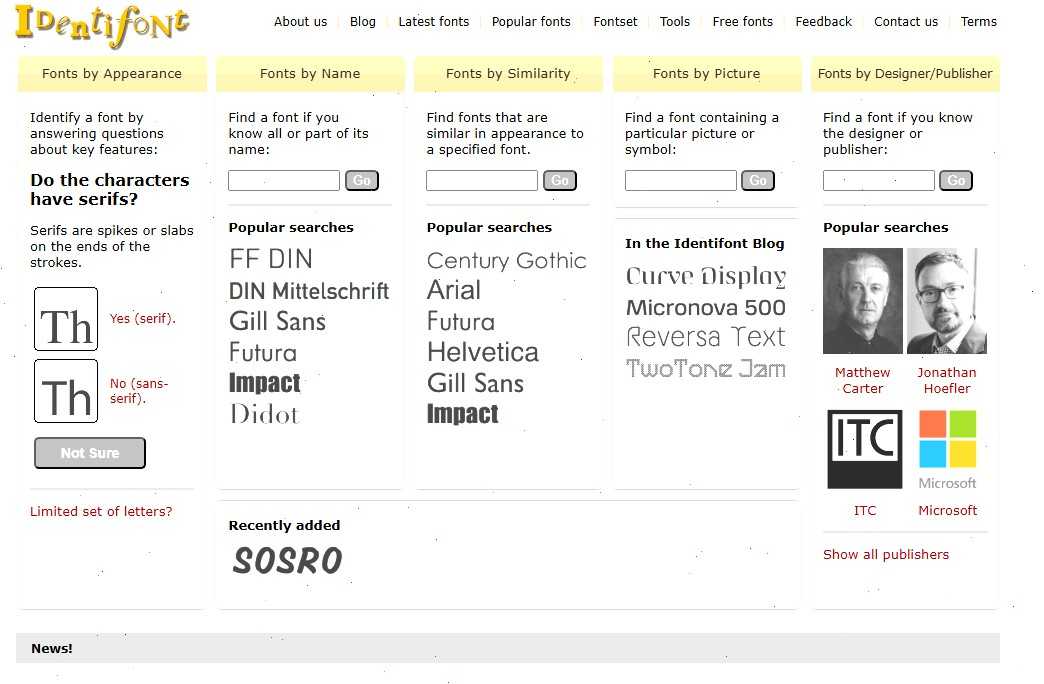
Not every font needs AI detection.
Sometimes manual analysis actually works better.
Identifont takes a completely different approach. Instead of uploading images, it asks questions about the font’s appearance.
The uploaded guide describes how users identify fonts based on visual characteristics and typography anatomy.
You’ll get questions like:
- Does the “Q” have a tail?
- Is the lowercase “a” single-story?
- Are the serifs rounded?
- Does the font look geometric?
It feels old-school at first, but it’s surprisingly effective.
Especially when:
- Images are blurry
- Text is partially hidden
- AI keeps failing
- The typography is highly decorative
Honestly, using Identifont also teaches you a lot about typography without realizing it.
After using it for a while, you start noticing tiny font details automatically.
Method 6 – Ask Typography Communities on Reddit
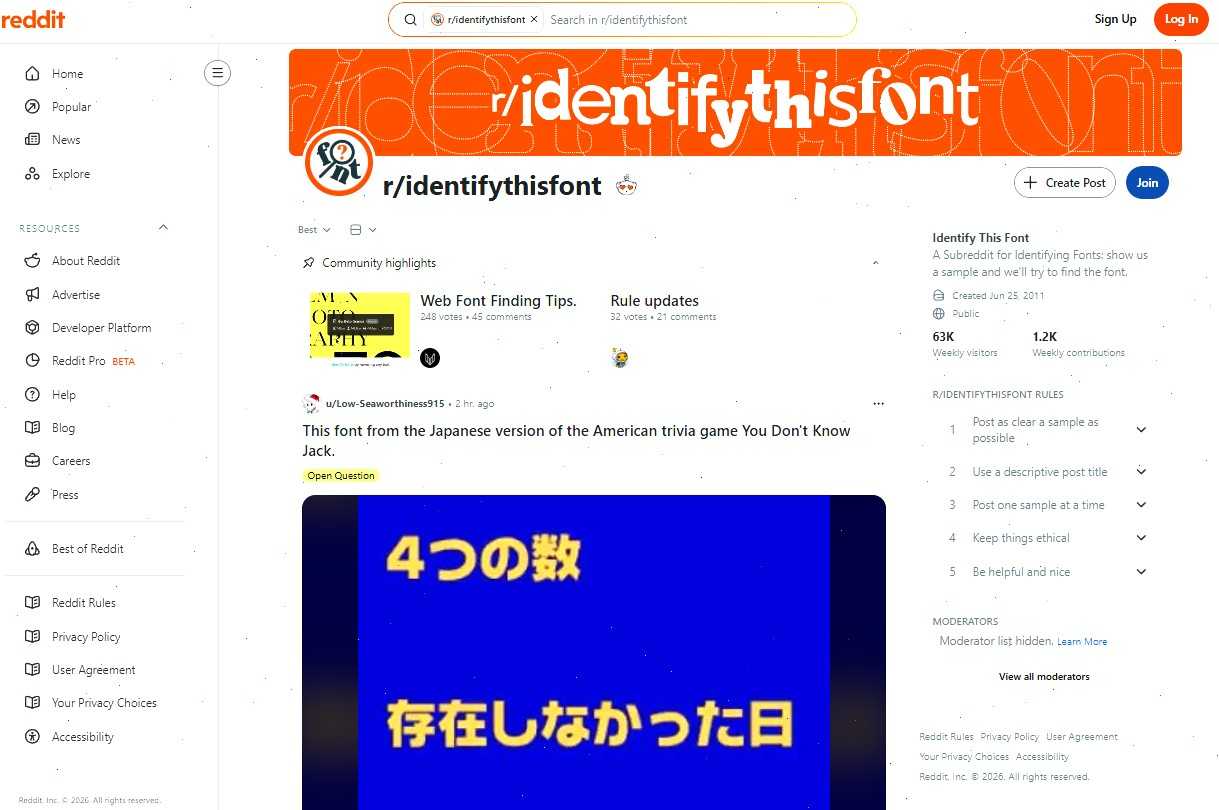
Sometimes the best font detector is just another designer.
Reddit has a surprisingly active typography community, especially the Identify This Font subreddit mentioned in the uploaded guide.
This method works incredibly well for:
- Vintage typography
- Hand-drawn lettering
- Custom logos
- Distorted fonts
- Rare typefaces
What AI often misses, experienced designers notice instantly.
I’ve seen people identify fonts based on tiny details like:
- The shape of a lowercase “g”
- The curve of an ampersand
- Spacing between letters
- The structure of numerals
It’s kind of impressive honestly.
Tips for Better Answers on Reddit
If you want useful replies:
- Upload a clean image
- Crop tightly around the text
- Include several visible letters
- Mention where the font came from
- Avoid blurry screenshots
The typography community is active enough that answers sometimes come within minutes.
And even when people can’t identify the exact font, they’ll usually recommend alternatives that are close enough for real-world design work.
That’s often more useful anyway.
Method 7 – Install FindMyFont Software
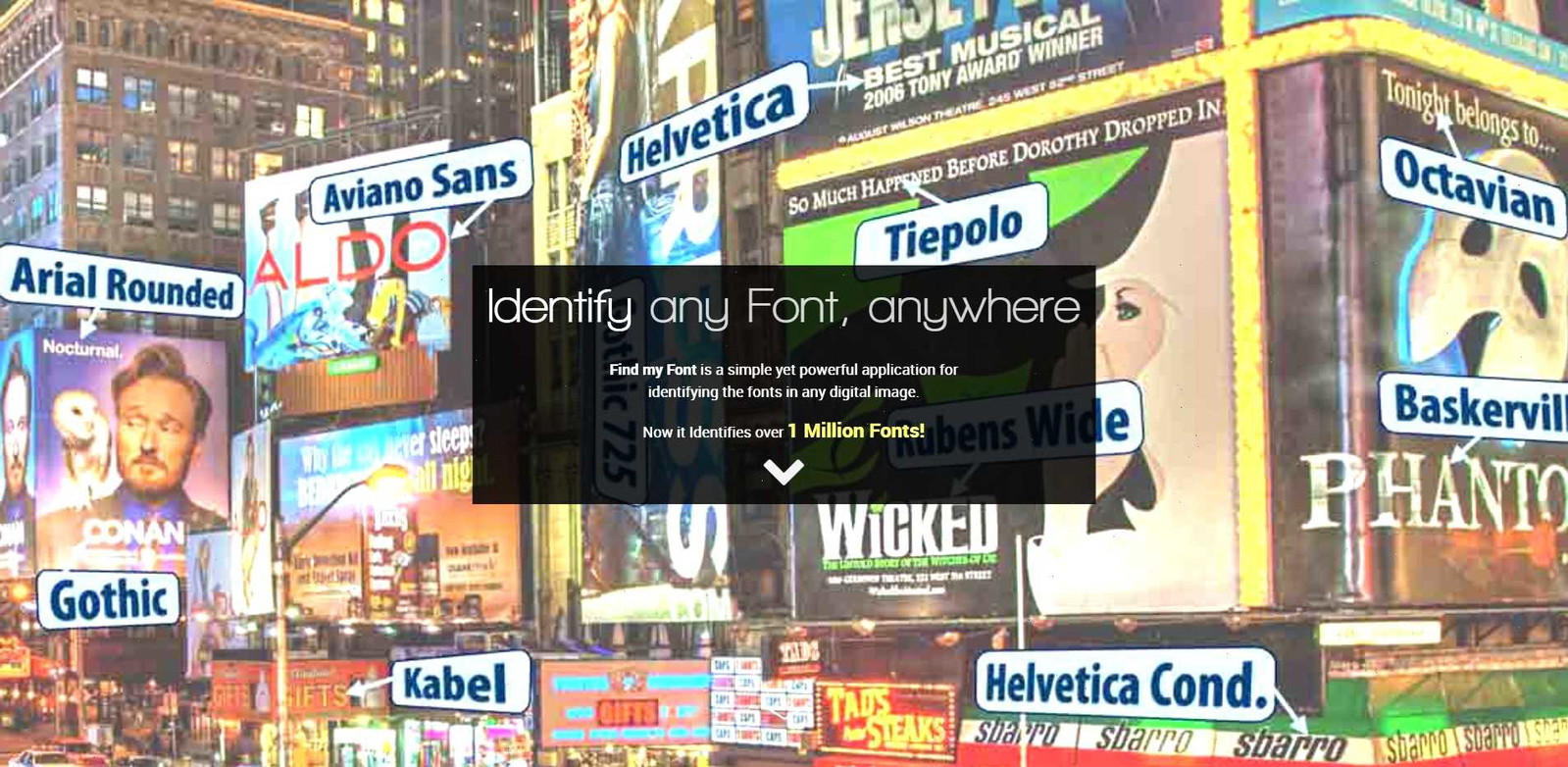
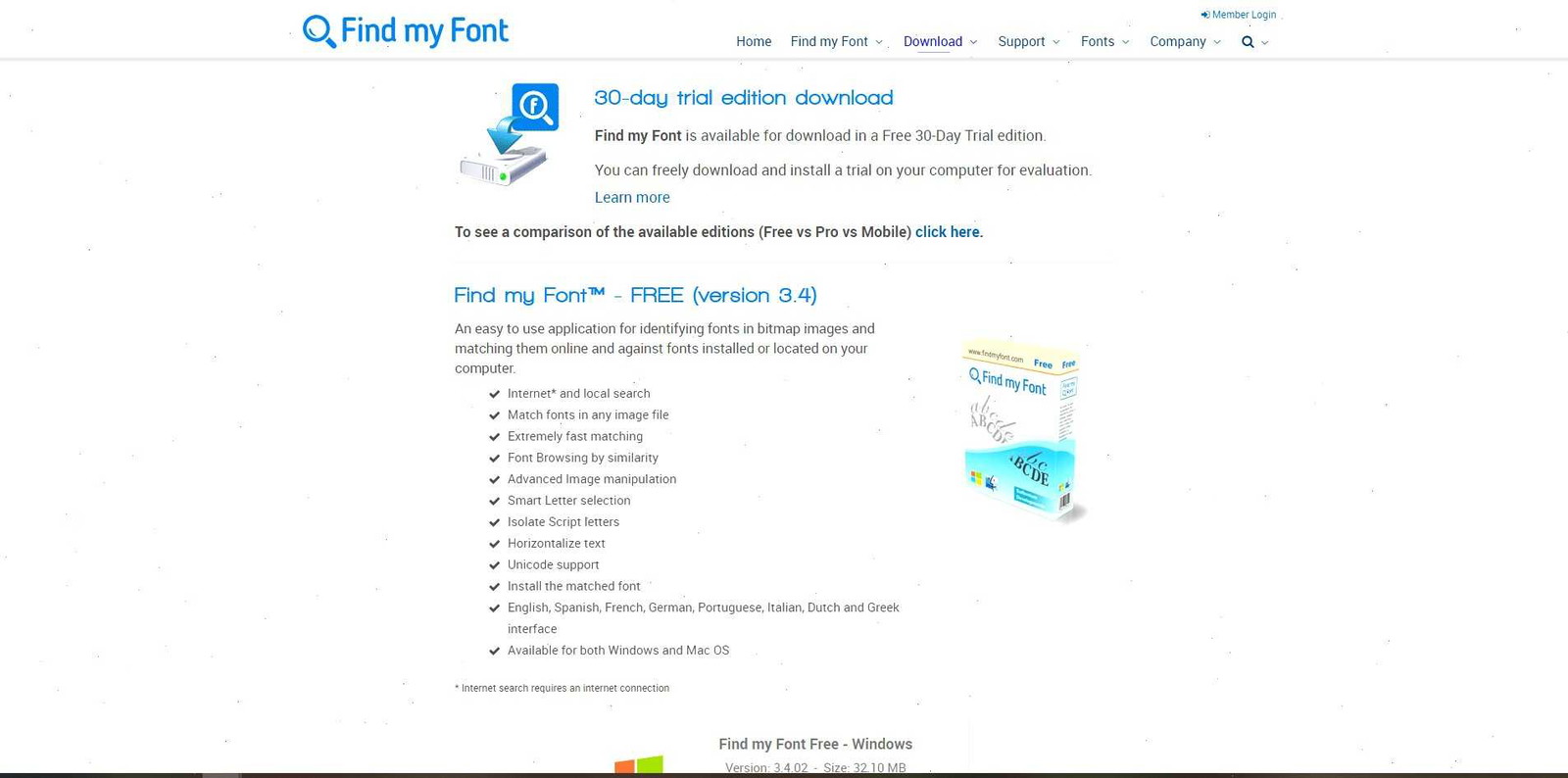
Most font identifiers are browser-based, but FindMyFont works as downloadable desktop software.
According to the uploaded guide, users can upload screenshots, manually select letters, and compare fonts against both online and local databases.
This approach is especially useful if you work with typography regularly.
Why Some Designers Prefer Desktop Software
Browser tools are convenient, but desktop software feels faster once font identification becomes part of your normal workflow.
Especially if you use:
- Adobe Illustrator
- Photoshop
- Figma
- Canva
- Publishing software
The Workflow
- Install the software
- Upload an image
- Highlight letters manually
- Enter recognizable text
- Run the matching engine
One thing that makes FindMyFont powerful is the hybrid search system.
It scans:
- Installed fonts
- Online databases
- Commercial libraries
- Free repositories
That wider search range noticeably improves accuracy.
Another Big Advantage: Multilingual Support
The uploaded guide mentions support for:
- Greek fonts
- Cyrillic typography
- Arabic typefaces
- Asian character systems
That’s genuinely useful if you work on international projects because most casual font tools mainly focus on Latin typography.
The downside is cost.
Casual users probably won’t need desktop software, but professionals who identify fonts constantly may find it worthwhile.
Method 8 – Detect Brand Fonts Using FontInLogo
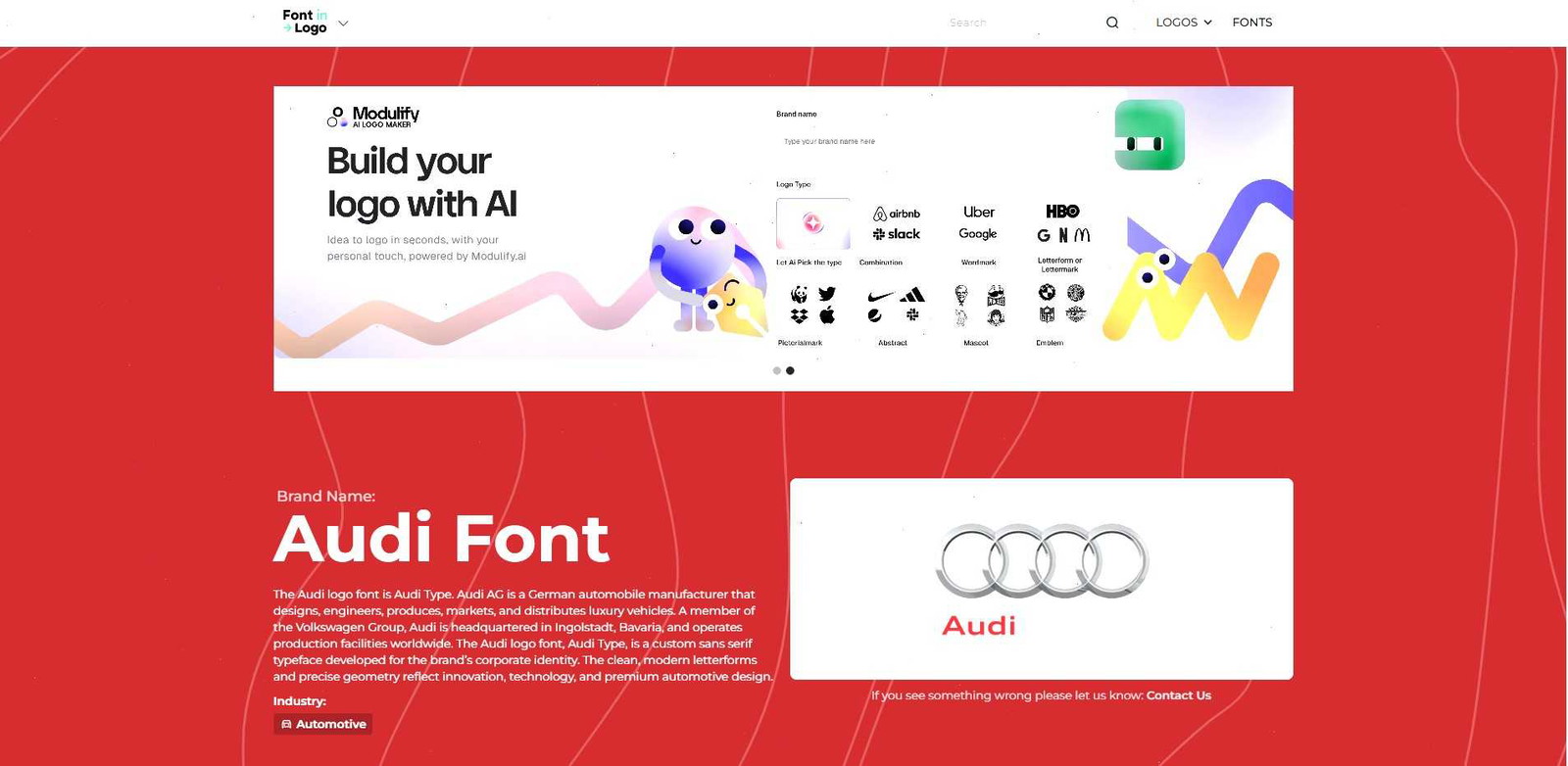
Ever seen a brand logo and wondered what font they use?8That’s basically what FontInLogo is built for.
The uploaded article explains that FontInLogo specializes in identifying typography used by major companies and brands.
Instead of uploading screenshots, you search for brand names directly.
You Can Search Brands Like
- Netflix
- Coca-Cola
- Adidas
- Amazon
- Disney
- Spotify
The platform typically shows:
- Font names
- Similar branding styles
- Typography categories
- Alternative font suggestions
This is honestly useful for mood boards and branding inspiration.
Once you start studying typography choices across industries, patterns become obvious:
- Luxury brands lean serif
- Tech startups prefer geometric sans-serif fonts
- Streaming platforms often use bold condensed typography
- Editorial brands use elegant high-contrast serifs
One important detail from the uploaded guide: FontInLogo mainly helps with discovery. It doesn’t directly sell fonts.
So after identifying the typeface, you’ll still need to locate licensing separately.
Identifying fonts is a fantastic skill, and it often leads to discovering new font styles and their perfect applications, like exploring the 15 Best Sans Serif Fonts for Modern Websites in 2026.
Common Mistakes People Make When Identifying Fonts
Font identification looks simple until weird edge cases start happening.
The uploaded guide highlights several mistakes that frequently reduce accuracy.
Mistake 1 – Assuming Every Logo Uses a Standard Font
A lot of logos use heavily customized typography.
Companies often modify:
- Letter spacing
- Curves
- Stroke width
- Character endings
So AI tools may only provide “close matches.”
That’s normal.
Mistake 2 – Uploading Distorted Images
Perspective angles confuse OCR systems fast.
Things like:
- Curved packaging
- Shadows
- Warped text
- Perspective distortion
- Text wrapped around objects
…can make recognition much harder.
I’ve noticed even strong tools struggle when typography is photographed at an angle.
Mistake 3 – Using Too Few Letters
Single-letter uploads rarely work well.
AI systems need multiple characters to compare shapes accurately.
At minimum, try to include:
- Uppercase letters
- Lowercase letters
- Repeated characters
- Distinctive shapes
The more visual information available, the better.
Mistake 4 – Forgetting About Licensing
This one gets overlooked constantly.
Identifying a font does not automatically mean you can use it commercially.
Some fonts require:
- Personal licenses
- Commercial licenses
- Web licenses
- Extended branding permissions
Always verify licensing before using identified fonts in client work, websites, products, or monetized projects.
Best Font Identification Tool for Different Use Cases
Different tools are good at different things.
The uploaded guide compares several use cases directly.
Here’s the simplified version:
| Use Case | Best Tool |
|---|---|
| Fast AI detection | WhatTheFont |
| Free font alternatives | WhatFontis |
| Professional typography matching | Fontspring Matcherator |
| Community expertise | |
| Brand logo fonts | FontInLogo |
| Desktop workflow | FindMyFont |
Personally, the workflow that works best is combining multiple methods.
Usually:
- Start with AI tools
- Compare several results
- Verify manually if needed
- Check licensing before downloading
That layered approach tends to produce the most reliable matches.
Conclusion
Identifying fonts from images is dramatically easier now than it used to be.
What once required deep typography knowledge can now be done with a screenshot and a few seconds of AI scanning.
FAQs
Can I identify fonts from blurry images?
Yes, but accuracy drops pretty quickly with blurry screenshots. Some AI tools can still suggest partial matches, though sharper images almost always work better. Light image sharpening sometimes helps before uploading.
Can AI identify custom logo fonts?
Sometimes. If the logo uses heavily modified typography, AI tools often provide visually similar alternatives instead of exact matches.
Which font identifier works best on mobile?
WhatTheFont has one of the better mobile experiences because it includes Android and iOS apps that can scan fonts directly using your phone camera.
Follow Us