

Best Weekly Digital Planner Templates for a More Organized Week
The best weekly digital planner templates don’t make your schedule look busier than it already is. They make the week easier to read.
At a glance, you should be able to spot appointments, deadlines, priority tasks, and anything that didn’t get finished last week. You shouldn’t need to open five different sections just to understand what Tuesday looks like.
Weekly planners vary more than they first appear. Some use a simple seven-day spread. Others include detailed daily pages, habit trackers, reflection prompts, meal planning, project sections, or hourly time blocks. Hyperlinked digital planners add another layer, connecting monthly, weekly, and daily pages so you can move around the file without endless swiping.

For this roundup, we looked closely at weekly planning templates available on Creative Fabrica. We paid particular attention to practical page structure, reusable undated layouts, visible popularity signals, and compatibility with common digital planning apps.
Creative Fabrica has thousands of planner-related resources, but more pages don’t automatically mean better time management. The templates below are the ones that appear genuinely useful for organizing a real week, not just creating an attractive digital notebook.
1. Free Weekly Digital Planner Template
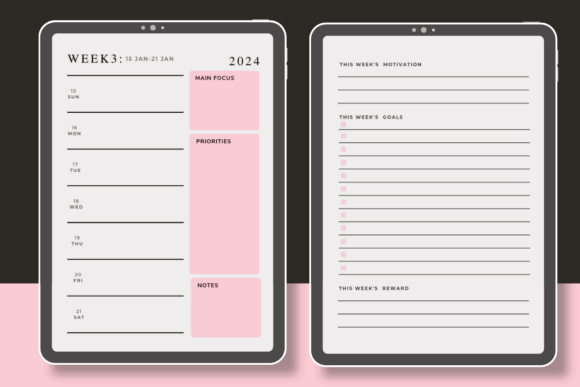
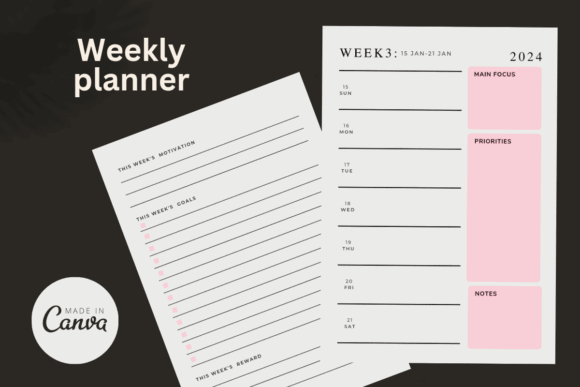
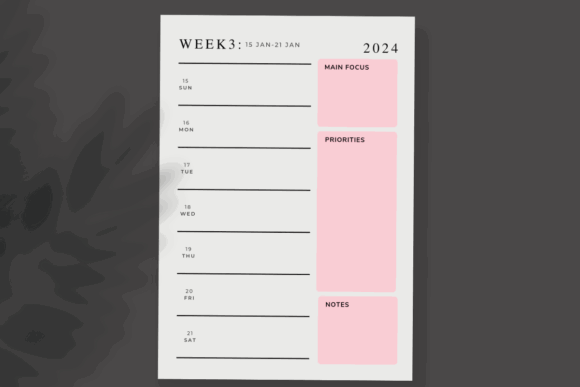
The Free Weekly Digital Planner Template by Templates by amleyy is a sensible starting point for anyone who wants to experiment with digital weekly planning before committing to a large planner system.
The template has been added to favorites more than 140 times, which is a fairly strong popularity signal for such a focused resource.
Its simple format suits people who already use a calendar app for appointments but want a separate place to organize tasks, weekly priorities, and reminders. There’s less setup involved, and you’re not navigating through hundreds of pages you may never use.
That simplicity is also its main limitation.
This template is better suited to straightforward weekly planning than detailed project management. If you want individual daily dashboards, budget pages, wellness trackers, or extensive goal-planning sections, you’ll probably outgrow it fairly quickly.
Still, for building a consistent planning habit, a smaller template can be easier to maintain than an elaborate all-in-one planner.
Best for: Beginners, simple schedules, low-maintenance weekly planning
Key features: Weekly layout, digital format, reusable planning structure
2. Undated Weekly and Daily Digital Planner
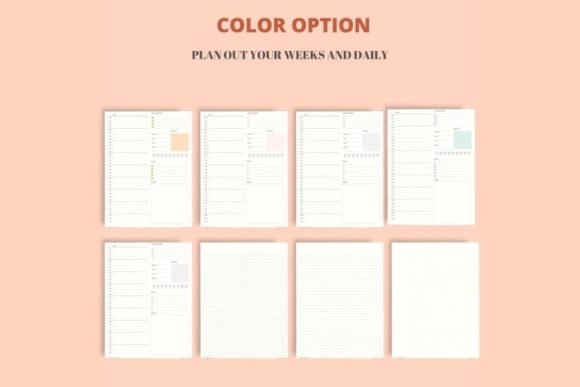
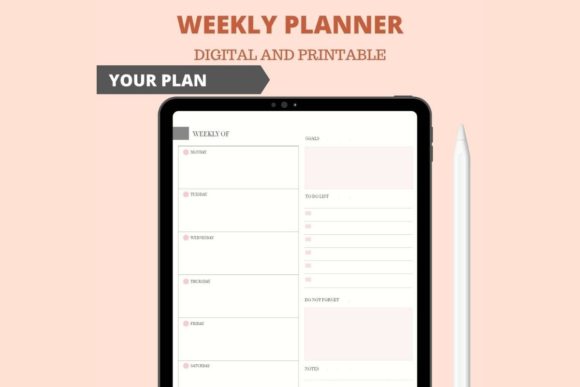
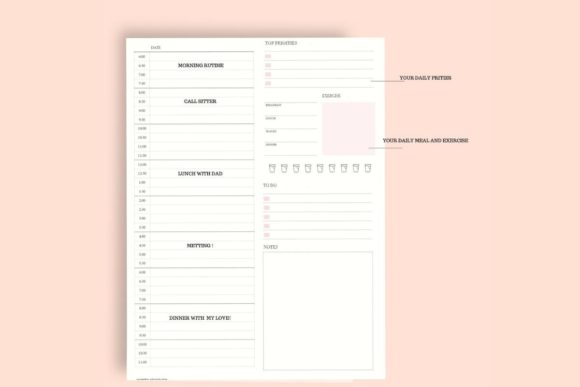
The Undated Weekly and Daily Digital Planner by Ndigitalstudio combines a broad weekly overview with more detailed daily planning pages.
This structure is particularly useful when your workload changes throughout the week. You can place deadlines, meetings, and major commitments on the weekly spread, then move the day’s actionable tasks onto a dedicated daily page.
The distinction between those two views matters. The weekly layout gives you perspective. The daily pages give you room to focus.
Because the planner is undated, you’re not tied to a particular calendar year. You can skip vacations, quiet periods, or weeks when your regular calendar is enough. That flexibility also makes undated templates feel less wasteful for people who don’t plan consistently every week.
There is more navigation involved than with a single weekly page. If you prefer to see absolutely everything at once, the daily pages may feel like an extra step.
For users who naturally break larger tasks into smaller actions, though, the format makes sense.
Best for: Detailed scheduling, changing workloads, task breakdowns
Key features: Undated pages, weekly overview, separate daily layouts
3. Digital Weekly Planner Hyperlinked
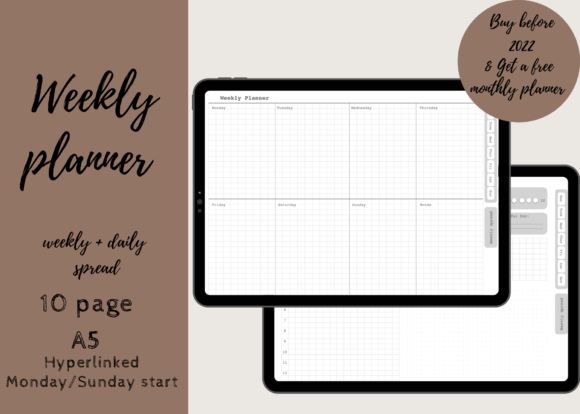
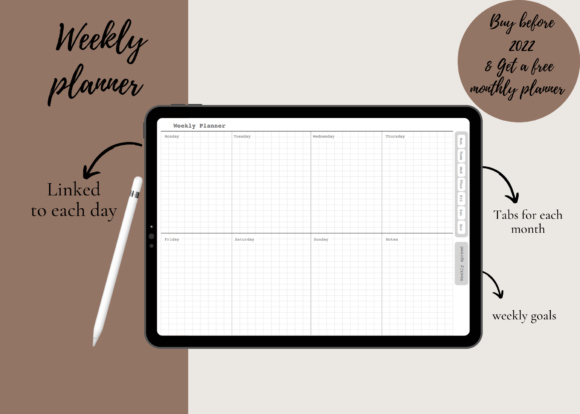
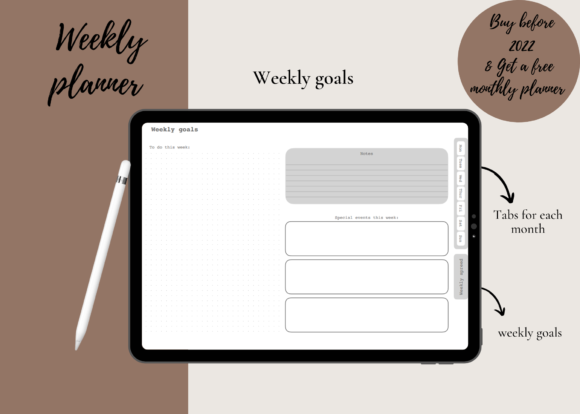
The Digital Weekly Planner Hyperlinked by yarasdigitalshop includes a weekly spread and separate planning pages for each day. It is designed for Goodnotes, Notability, and similar PDF annotation apps.
Hyperlinks are easy to dismiss as a minor feature until you use a planner with several repeated page types. Instead of swiping through the file, you can tap directly from the weekly dashboard to the page for Monday, Tuesday, or any other day.
That small convenience makes the planner feel more organized, especially during busy weeks.
The format is well suited to freelance schedules, study plans, or meeting-heavy workdays. The weekly page acts as a control center, while the daily layouts give you enough space for notes, task sequences, and smaller commitments.
A hyperlinked structure isn’t necessary for everyone. If you prefer a quiet, paper-like experience and mostly stay on one page, the navigation system may add complexity without offering much benefit.
It delivers the most value when you regularly move between the big picture and day-level detail.
Best for: Goodnotes users, busy schedules, daily task planning
Key features: Hyperlinked PDF, seven daily pages, weekly overview
4. Undated Weekly Digital Planner
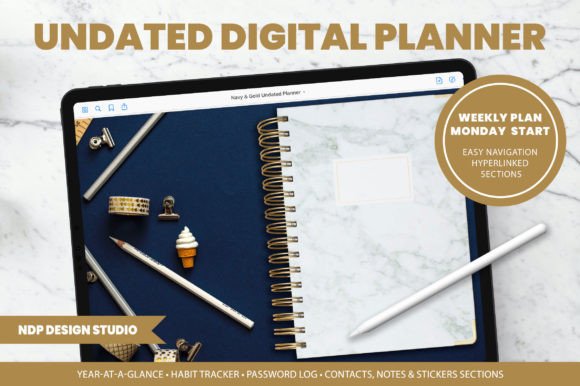
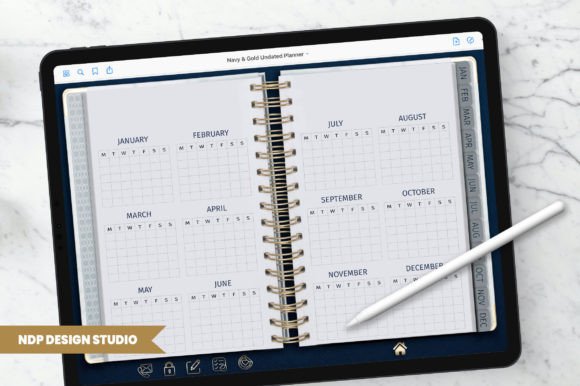
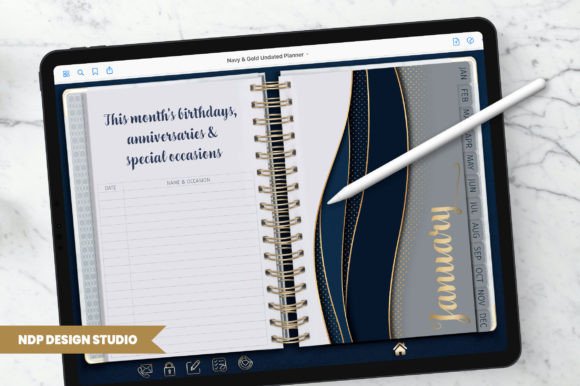
The Undated Weekly Digital Planner by NDP Design Studio uses a minimalist layout that leaves the planning method largely up to you.
Minimal templates tend to remain useful longer than heavily themed planners. They don’t lock you into someone else’s color system, decorative style, or category labels. You can add your own handwriting, highlights, icons, or digital stickers without the page immediately feeling crowded.
This kind of open structure is especially good for task-based planning.
You might use each day for a short list, reserve one area for weekly priorities, and keep some blank space for reminders or unfinished work. The layout can adapt from week to week rather than forcing every schedule into the same pattern.
The tradeoff is that a minimalist planner won’t teach you a planning system. It offers space, not guidance.
Someone who likes prompts for gratitude, meals, wellness, finances, or habit tracking may find the layout too bare. But for users who already know how they want to organize a week, the lack of decorative noise is a strength.
Best for: Minimalists, flexible routines, distraction-free planning
Key features: Undated structure, clean layout, customizable open space
5. Daily and Weekly Digital Planner
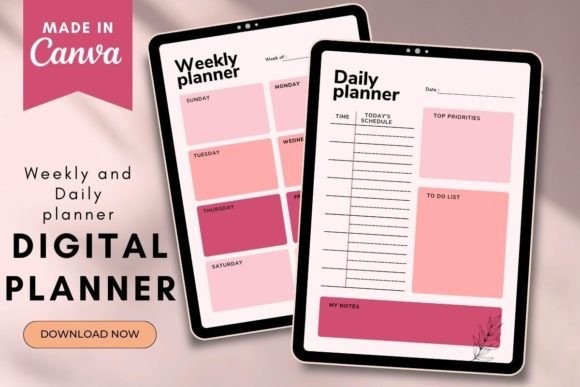
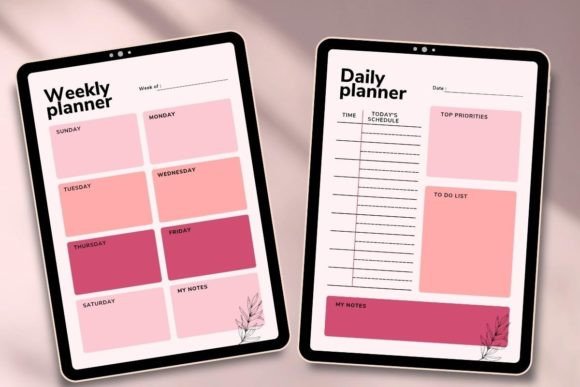
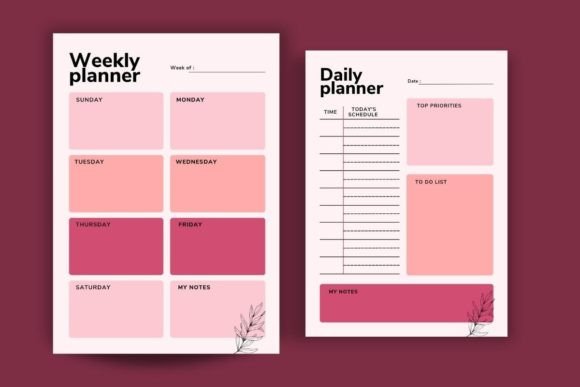
The Daily and Weekly Digital Planner by Templates by amleyy has been added to favorites more than 30 times. It combines the two planning levels most people actually use: a weekly overview and a focused daily page.
This is a practical middle ground.
A single weekly page can become restrictive when you have several tasks or appointments each day. At the other extreme, a huge planner filled with specialized trackers can create more maintenance than value.
Here, the weekly page can hold fixed commitments and desired outcomes. The daily layout can handle the order in which the work needs to happen.
The key is not to duplicate everything. Rewriting the same task on several pages quickly becomes tedious. It’s usually better to keep appointments and deadlines on the weekly spread, then move only the work you can act on into the daily page.
For someone with just a few recurring tasks each week, the extra daily layout may feel unnecessary. For work or study schedules with shifting priorities, it offers useful breathing room.
Best for: Work planning, study schedules, daily prioritization
Key features: Weekly overview, daily page, focused two-layout system
6. All in One Cute Undated Digital Planner
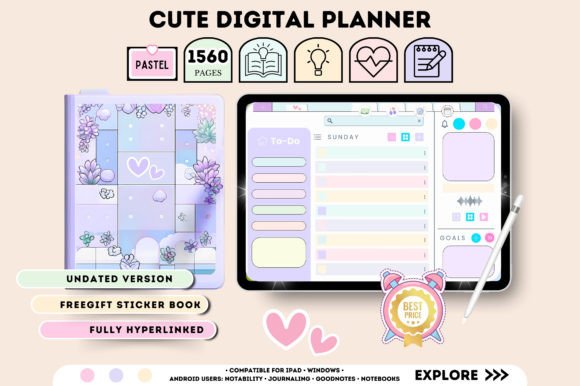
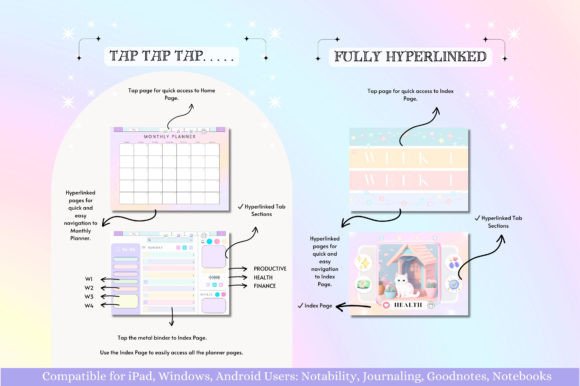
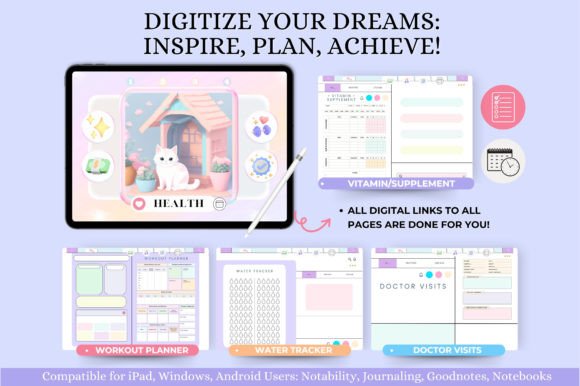
The All in One Cute Undated Digital Planner by Tas Creative Studio includes hyperlinked daily, weekly, and monthly pages, along with a small digital sticker book.
This planner is aimed at users who see planning as both organization and a creative routine.
The softer visual styling gives the pages more personality than a plain productivity template. The included stickers also make it easier to personalize categories, mark events, or add visual cues without sourcing a separate sticker pack.
Its undated structure is another practical advantage. You can leave the planner for a few weeks and return without finding a long stretch of unused dated pages. That sounds minor, but it removes some of the guilt people often associate with abandoning a planner.
The broader feature set won’t suit everyone.
Decorative layouts fill up faster, especially on smaller screens. Once handwriting, highlights, and extra stickers are added, contrast and legibility can suffer. It’s worth being selective rather than decorating every available space.
For creative planners who enjoy the visual side of the process, though, this format can make weekly organization feel less clinical.
Best for: Creative planning, personal routines, visual organization
Key features: Hyperlinked pages, undated layouts, included digital stickers
7. Digital Planner Hyperlinked
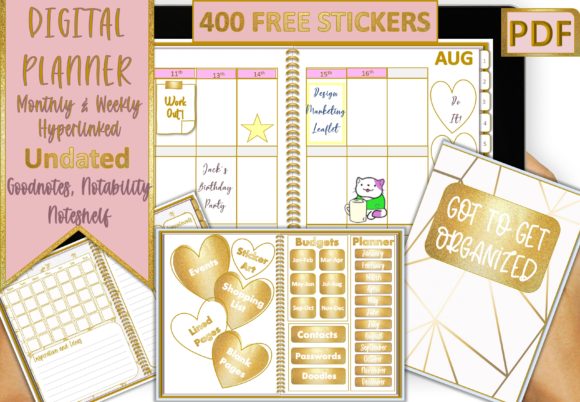
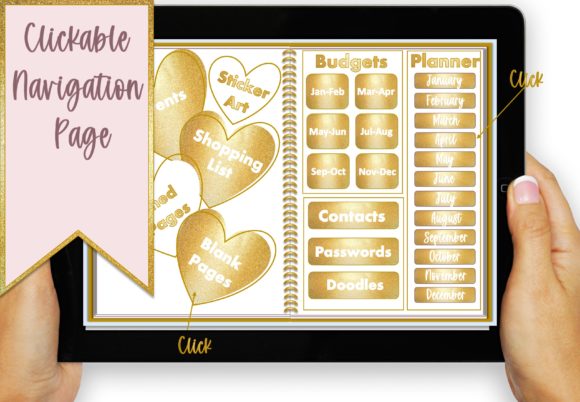
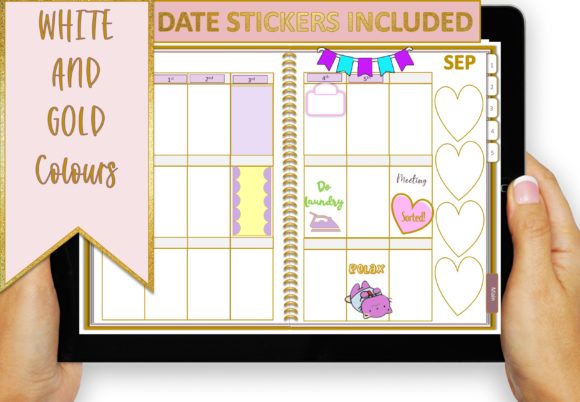
The Digital Planner Hyperlinked by The Paper Princess is delivered as a fully linked PDF and includes weekly planner pages for tablet-based organization.
A fully hyperlinked planner makes the most sense when weekly planning is part of a wider system.
Monthly pages can hold upcoming deadlines and events. Weekly pages break those commitments into manageable blocks. Additional sections can store notes, goals, or supporting information. Instead of operating as a standalone spread, the weekly view becomes one part of a larger planning workflow.
Navigation is the main advantage. Once you learn where the tabs lead, moving through the planner feels closer to using an app than browsing an ordinary PDF.
The compromise is file complexity.
Large hyperlinked PDFs can take longer to import, duplicate, sync, and back up. They may also feel slower on older tablets or in free versions of certain annotation apps. Before purchasing, check that your preferred app supports internal PDF links reliably.
This type of planner is useful for long-term organization, but it may be more system than you need for a simple weekly task list.
Best for: Tablet planning, linked workflows, long-term organization
Key features: Fully hyperlinked PDF, weekly pages, tablet-ready navigation
8. Digital Weekly Planner Canva Template
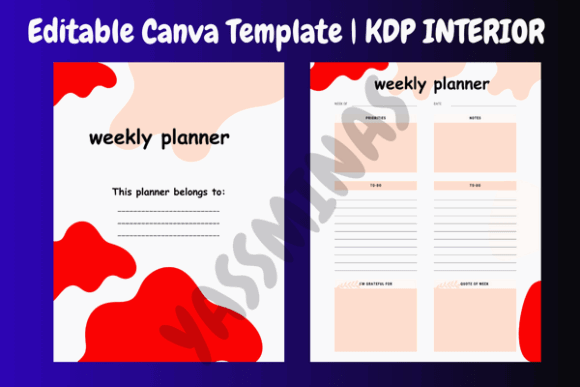
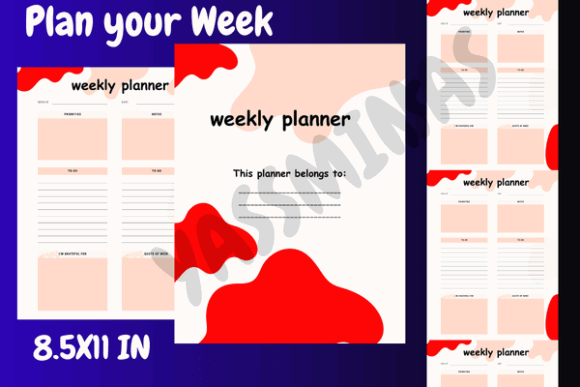
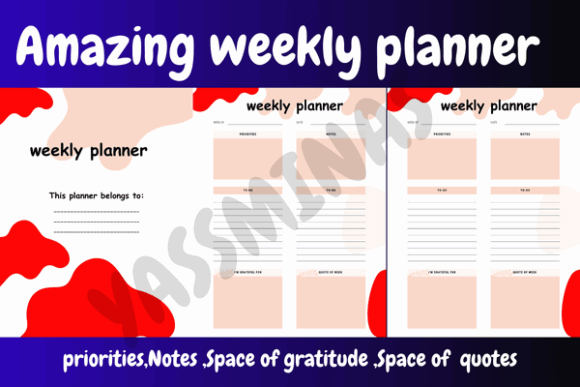
The Digital Weekly Planner Canva Template by YASSMINAS includes areas for weekly tasks, priorities, gratitude, and personal notes.
Its Canva format is the main reason to choose it.
Unlike a finished PDF planner, a Canva template lets you adjust typography, spacing, labels, colors, and section names before using the layout. This is useful when a standard weekly planner includes categories that don’t match the way you work.
You might rename a gratitude section as “weekly wins,” replace personal notes with client deadlines, or enlarge the task area if you rarely use reflection prompts.
The combination of productivity and reflection sections will appeal to users who want to notice how the week felt, not just how many boxes were checked. For personal planning, that can be meaningful. For business use, the gratitude area may take up space you’d rather give to deadlines or follow-ups.
There’s also a small trap here: customization can become procrastination.
Make the essential changes once, use the template for several weeks, and adjust it only after you know what’s actually missing. Redesigning the planner every Sunday usually doesn’t improve the schedule.
Best for: Canva users, personalized layouts, reflective weekly planning
Key features: Editable design, priority section, gratitude and notes
9. Hyperlinked Planner for iPad and Android
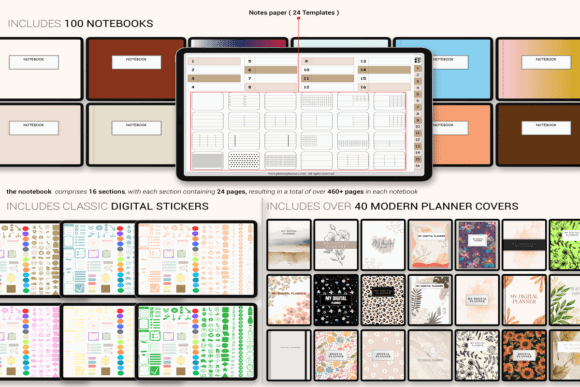
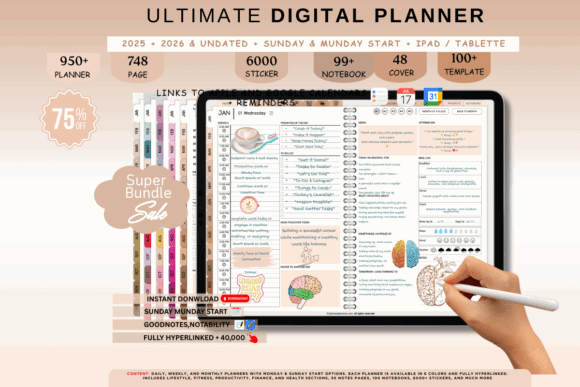
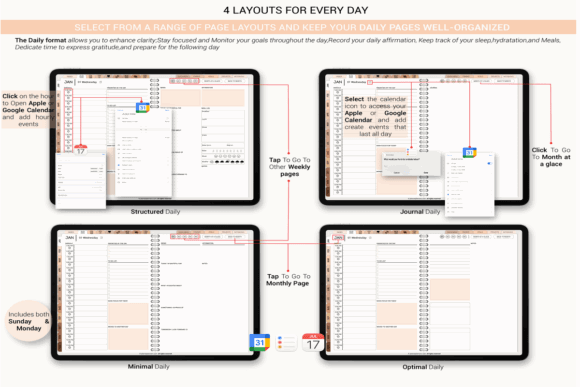
The Hyperlinked Planner for iPad and Android by Plamarplanners is the most extensive planning system in this roundup.
It includes daily, weekly, monthly, budget, wellness, and project pages connected by more than 40,000 internal links. The weekly layouts also include time blocks, habit trackers, weekly goals, and reflection prompts.
This level of depth can replace several separate notebooks or digital files. It’s particularly relevant for users who want to manage work projects, personal routines, appointments, goals, and finances from the same device.
The weekly pages offer more than a standard calendar view. Time blocks can help protect focused work. Goal sections connect daily tasks to longer-term progress. Reflection prompts create a place to notice what is and isn’t working.
Still, this isn’t the planner I’d point a beginner toward first.
More sections create more decisions. If you regularly abandon complicated productivity systems, an all-in-one planner may become another file filled with unused trackers. The sheer number of links is impressive, but it only adds value when you already know which modules you’ll use consistently.
For experienced digital planners who want one connected system, the depth is a real advantage.
Best for: Advanced planning, projects, integrated life organization
Key features: Extensive hyperlinks, time blocks, goals and habit tracking
10. Weekly Planner and Review
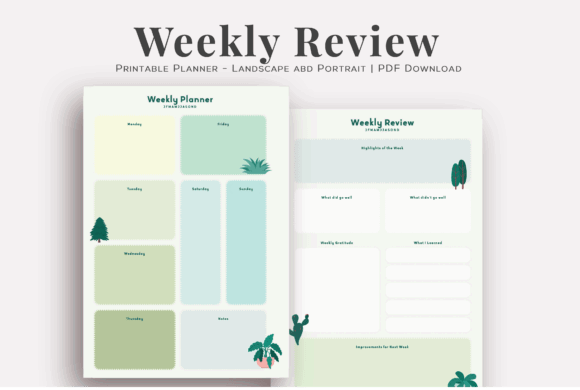
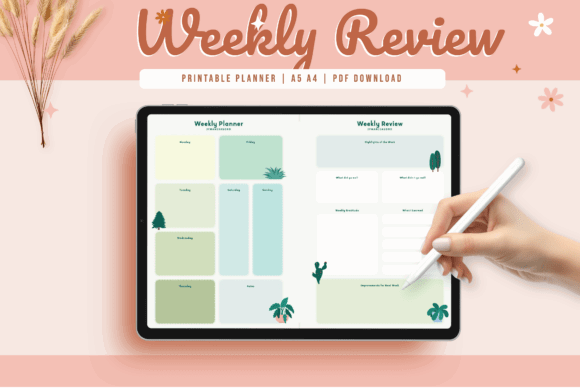
The Weekly Planner and Review by Print Magic StudioX adds something many weekly templates overlook: a structured review of the week that just ended.
Most planners make it easy to move unfinished tasks forward. Fewer encourage you to examine why those tasks were missed in the first place.
A weekly review can reveal patterns that aren’t obvious in the middle of a busy schedule. Perhaps Tuesday is consistently overloaded. Maybe a recurring task is too vague. You may be underestimating how long administrative work takes, or carrying forward commitments that no longer matter.
This template is especially useful for goal-oriented work, study routines, and creative projects. At the end of each week, you can identify what moved forward, what stalled, and what should be changed before planning the next seven days.
The reflection section does require a little extra time. If it’s left blank every week, the template loses much of its purpose.
Used consistently, though, it can help improve the planning process rather than simply documenting it.
Best for: Weekly reviews, goal tracking, improving planning habits
Key features: Planning layout, reflection prompts, progress review
How to Choose a Weekly Digital Planner Template

A good digital planner should match the way you already think about time.
Choosing the template with the most pages, tabs, or decorative elements rarely leads to better organization. In practice, the best planner is usually the one you can understand quickly and return to without needing to relearn the system.
Choose Between Dated and Undated Pages
A dated planner provides immediate structure. Weeks, months, and calendar dates are already connected, which reduces setup time and makes it easier to schedule events several months ahead.
An undated planner is more forgiving.
You can begin at any point in the year, skip unused weeks, and duplicate pages whenever necessary. It’s often better value for people who plan intermittently or mainly use the planner for short-term task management.
Choose a dated planner when forward scheduling is important. Choose an undated layout when flexibility matters more than calendar continuity.
Check App and Device Compatibility
Many digital planners are PDF files rather than standalone apps.
To write, highlight, insert images, or use hyperlinks, you’ll need compatible PDF annotation software. Goodnotes and Notability are commonly mentioned in Creative Fabrica listings, although some planners also support other Android, Windows, and tablet annotation apps.
Canva templates work differently. They’re most useful when you want to edit the original layout before exporting or using it.
Check the file size too.
Large all-in-one planners can be demanding, especially on older devices or free app plans. One Creative Fabrica planner listing specifically notes that its file is too large for the free version of Goodnotes 6. That’s the kind of practical detail worth checking before downloading.
Match the Layout to Your Planning Style
Choose a horizontal or dashboard-style spread when you think in categories such as work, personal tasks, errands, and priorities.
Choose a vertical layout when you prefer time blocking or need to see how appointments occupy each day.
Simple weekday boxes are usually enough for short task lists. Hourly sections become more useful when meetings, classes, calls, and focused work all compete for the same limited time.
Pay attention to spacing as well. A planner may technically include every feature you want but still feel awkward if the writing areas are too small for your handwriting.
Avoid Templates With Too Many Sections
A planner can contain dozens of trackers and still do a poor job of managing time.
Every extra page creates something else to check, update, or ignore. If you’re already struggling to maintain a weekly planning habit, adding more sections rarely fixes the problem.
Start with four essentials:
- Fixed appointments
- Three weekly priorities
- Actionable tasks
- Space for unfinished work
Add meal planning, wellness, finances, habits, or project pages only when they solve a recurring problem.
An unused tracker doesn’t improve productivity. Most of the time, it just adds visual guilt.
A Simple Weekly Planning Routine
Set up the week before Monday becomes busy.
Ten to fifteen focused minutes is usually more useful than repeatedly rearranging the planner throughout the day.
Start by entering appointments, deadlines, classes, calls, and other fixed commitments. These items show how much usable time is actually available.
Next, choose no more than three meaningful outcomes for the week.
“Work on website” is too vague. “Publish the weekly planner article” gives you a clear finish line.
Break each outcome into visible actions and assign those actions to realistic days. Avoid placing every task at the beginning of the week simply because the page is still empty.
Leave some blank space too.
A planner packed edge to edge has no room for delays, unexpected requests, lower-energy days, or tasks that take longer than expected. White space isn’t wasted space. It’s capacity.
At the end of the week, review unfinished work before moving it forward. Some tasks still matter and should be rescheduled. Others have been copied from week to week simply because no one decided to delete them.
Final Thoughts
The right weekly digital planner template should reduce the number of decisions you need to make during the week.
It should show what is fixed, what deserves attention, and where there is still room to work.
The Free Weekly Digital Planner Template is the easiest place to begin. The Digital Weekly Planner Hyperlinked offers a more structured workflow for moving between weekly and daily pages. The Hyperlinked Planner for iPad and Android is better suited to users who want a broad system covering projects, habits, goals, scheduling, and reflection.
Whichever layout you choose, resist the urge to fill every field.
A weekly planner is most useful when it reflects your actual capacity, not an idealized version of how much you hope to accomplish.
Some links in this article may be affiliate links. If you purchase through them, we may earn a small commission at no extra cost to you. Thanks for supporting our work.
FAQ
What is the best weekly digital planner for Goodnotes?
A hyperlinked PDF with weekly and daily pages is usually the most practical option for Goodnotes. It lets you see the complete week and then move directly to a detailed daily page. Confirm file-size compatibility before importing a large planner.
Are undated digital planners better than dated planners?
Undated planners are better for flexible or inconsistent use because you can start at any time and skip weeks without wasting pages. Dated planners are better for scheduling appointments and deadlines far in advance.
Can I use a digital weekly planner without an iPad?
Yes. Many PDF planners can be used with compatible annotation software on Android tablets, Windows devices, and other touchscreen computers. Canva-based templates can also be edited through a web browser before being exported.
What should a weekly digital planner include?
A useful weekly planner should include a seven-day overview, weekly priorities, task space, and room for notes. Time blocks, daily links, habit trackers, and review sections are helpful only when they match your routine.
Save Pin for Pinterest

Follow Us