

ℹ️ Affiliate Disclosure: This article may contain affiliate links. We may earn a commission at no extra cost to you. Thanks for your support! ❤️
How to Select Google Sheets Templates for Design Project Management
Design projects get messy when briefs, revisions, deadlines, client details, and payments live in separate places. I like Google Sheets templates for design project management because they offer a familiar, flexible workspace without requiring a full project management platform. The strongest options below support specific parts of a creative workflow rather than acting as generic digital to-do lists.
The best Google Sheets template for design project management is one that matches your biggest workflow problem. Choose a project dashboard for end-to-end oversight, a Gantt chart for deadline-heavy work, a Kanban board for production stages, or a client tracker when communication and payments cause the most friction.
| Template | Best for | Format or type |
|---|---|---|
| Project Management Spreadsheet Template | Complete project oversight | Google Sheets and Excel |
| Gantt Chart Project Management Template | Timelines and dependencies | Google Sheets and Excel |
| Kanban Board Spreadsheet Template | Visual production stages | Google Sheets and Excel |
| Task Tracker Template Spreadsheet Excel | Detailed task assignments | Google Sheets and Excel |
| To-Do List Tracker Template Excel | Simple freelance workflows | Google Sheets and Excel |
| Client Tracker & Management Spreadsheet | Projects, clients, and payments | Google Sheets and Excel |
| Client Tracker + CRM Templates Excel | Lead-to-delivery workflows | Spreadsheet bundle |
| CRM Spreadsheet Template Google Sheets | Client communication history | Google Sheets and Excel |
| Content Calendar, Google Sheets | Campaign and content design | Google Sheets |
| Social Media Content Planner Excel | Social design production | Google Sheets and Excel |
| Billing Invoice Template Google Sheets | Design billing and invoicing | Google Sheets, Excel, Numbers |
| Time-Saving Spreadsheet Bundle | Multi-area studio administration | Spreadsheet bundle |
Google Sheets Templates for Managing Design Projects
1. Project Management Spreadsheet Template
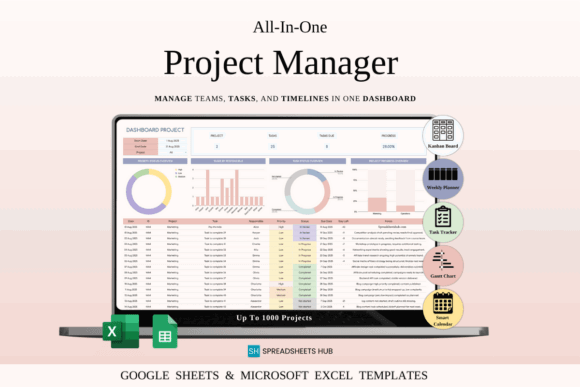
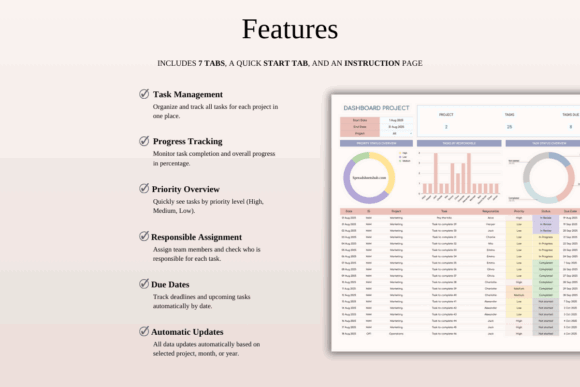
This is an all-purpose project management spreadsheet for designers who want tasks, deadlines, priorities, responsibilities, and progress summaries in one workspace. I would use it for branding packages, website builds, or campaign design projects with several deliverables moving at once.
Its broad structure is the main advantage, but it may require more initial customization than a narrowly focused tracker. Rename the supplied categories around your own process, such as brief, concept, internal review, client review, revisions, production, and delivery.
Best for: multi-deliverable projects, small creative teams, studio dashboards
Key features: task tracking, progress overview, deadlines, team assignments
Download Project Management Template
2. Gantt Chart Project Management Template
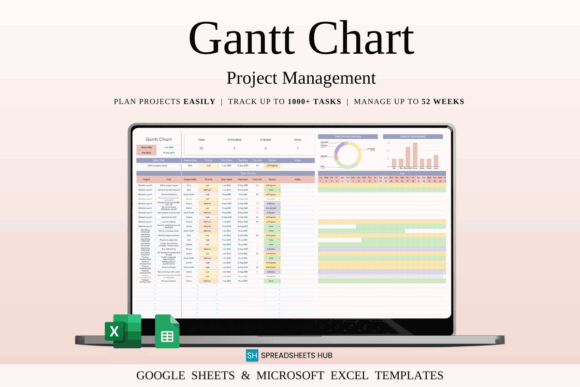
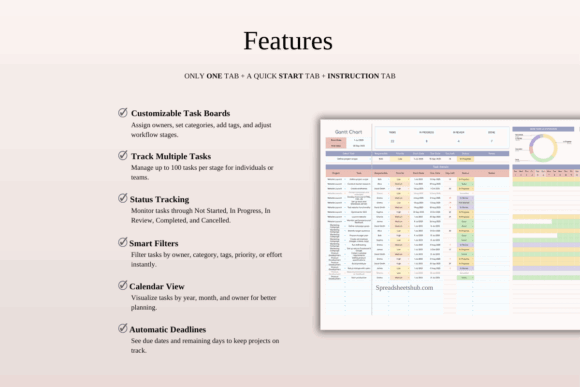
This Gantt chart template is designed for projects where sequencing matters as much as the final due date. It gives designers a visual timeline for mapping tasks, owners, priorities, progress stages, and the time available before each deadline.
My pick for complex web, packaging, or launch projects, it can make dependencies easier to spot than a standard task list. The limitation is upkeep: a Gantt chart only stays useful when dates and progress are updated consistently after revisions or approval delays.
Best for: website projects, product launches, dependency-heavy schedules
Key features: visual timeline, task owners, priority alerts, progress snapshot
3. Kanban Board Spreadsheet Template
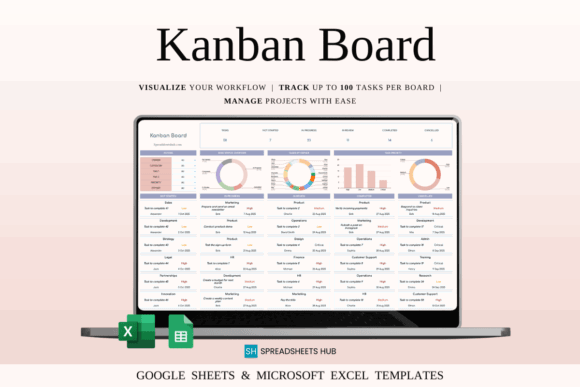
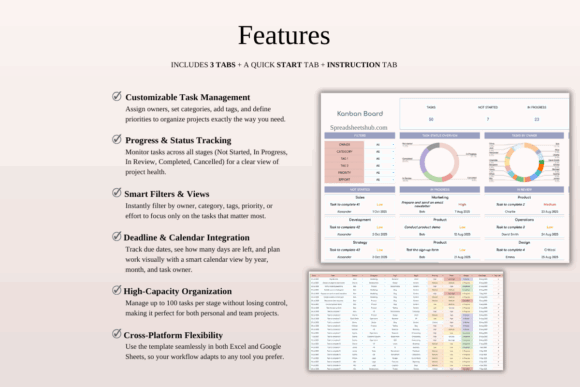
This Kanban spreadsheet is for visual thinkers who prefer moving design tasks through defined production stages. A designer could organize work into columns or statuses such as incoming, planned, designing, awaiting feedback, revising, approved, and delivered.
I would choose this over a Gantt chart for fast-moving studios that handle many smaller requests. It provides a clearer production queue, although it is less suited to showing detailed task dependencies or long overlapping schedules.
Best for: recurring design requests, production queues, visual workflows
Key features: Kanban-style stages, status tracking, task organization, customizable workflow
Download Kanban Board Template
4. Task Tracker Template Spreadsheet Excel
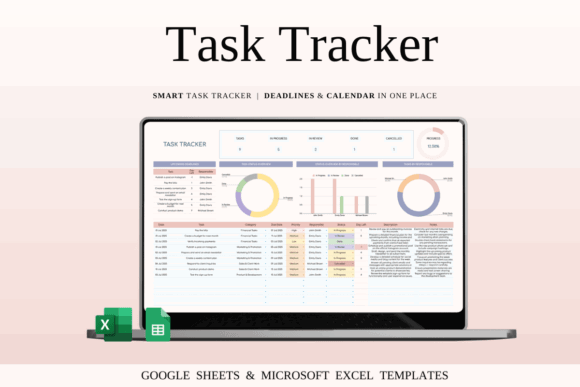
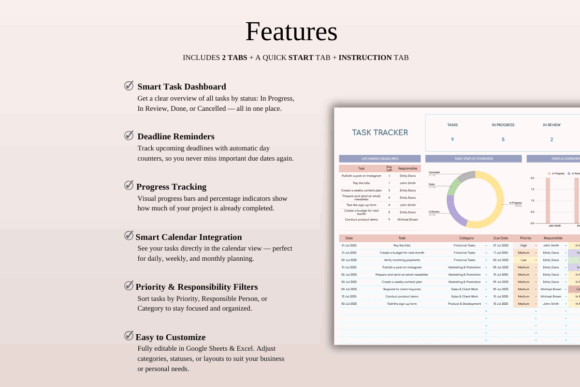
This detailed task tracker suits design teams that need to record more than a task name and due date. Its documented structure includes status categories, priorities, responsible team members, deadlines, notes, a calendar, upcoming work, and dashboard-style progress information.
I like it for projects with many handoffs, such as a campaign moving between copy, design, review, and publishing. Solo designers may find some fields unnecessary, but unused team columns can be renamed for clients, vendors, or approval contacts.
Best for: team assignments, campaign production, deadline monitoring
Key features: task dashboard, calendar view, priorities, responsibility breakdown
Download Task Tracker Template
5. To-Do List Tracker Template Excel
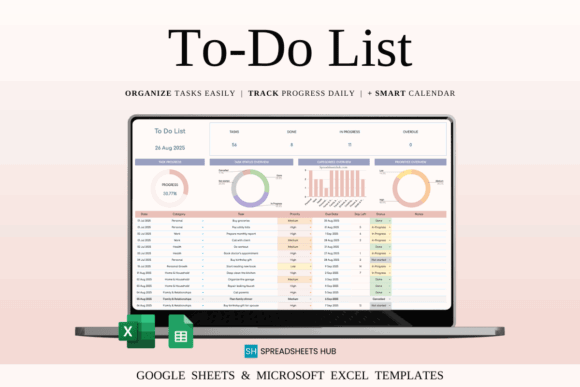
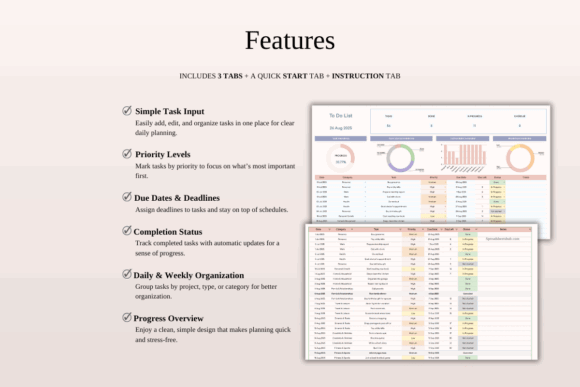
This streamlined to-do tracker is aimed at freelancers and small teams that need a simpler alternative to a full project dashboard. It lets users organize tasks with categories, priorities, statuses, dates, notes, filters, calendar information, and visual progress summaries.
I would use it for a solo design queue containing logo edits, social graphics, invoices, portfolio updates, and client follow-ups. It is easy to understand, though large projects may eventually need separate sheets for milestones, dependencies, and project-level reporting.
Best for: freelance workloads, daily priorities, small projects
Key features: smart filters, due dates, calendar view, progress charts
Download To-Do Tracker Template
6. Client Tracker & Management Spreadsheet
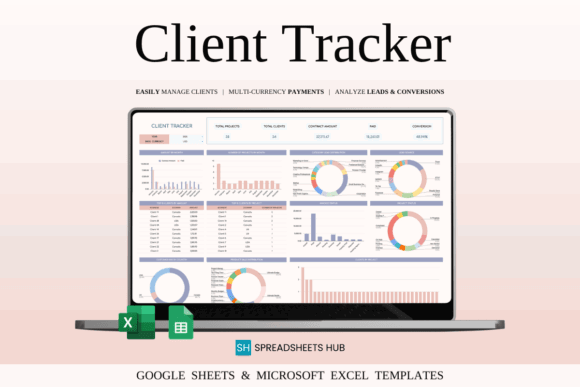
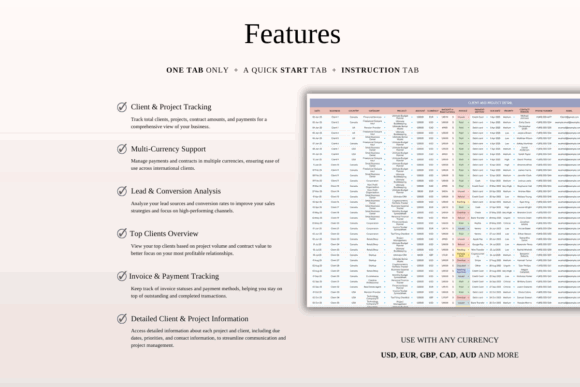
This client management spreadsheet combines contact information, project details, priorities, deadlines, and payment records. It is a practical fit for independent designers who lose time switching among a contact list, production tracker, and separate payment spreadsheet.
Its client-centered structure is more useful for service businesses than a general task planner, and the listed multi-currency support may help designers serving international customers. I would still keep contracts and sensitive files in dedicated storage rather than placing confidential material directly in the sheet.
Best for: freelancers, international clients, project and payment oversight
Key features: client records, project tracking, payment status, multi-currency support
Download Client Tracker Spreadsheet
7. Client Tracker + CRM | Templates Excel
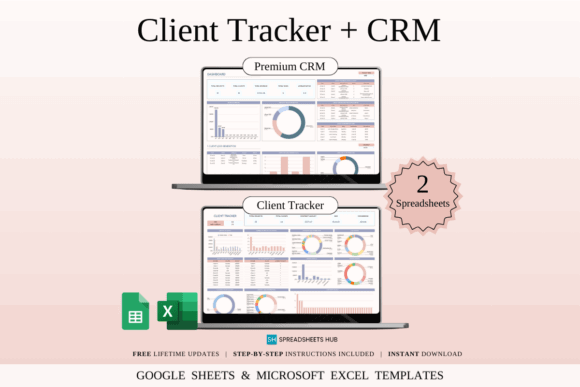
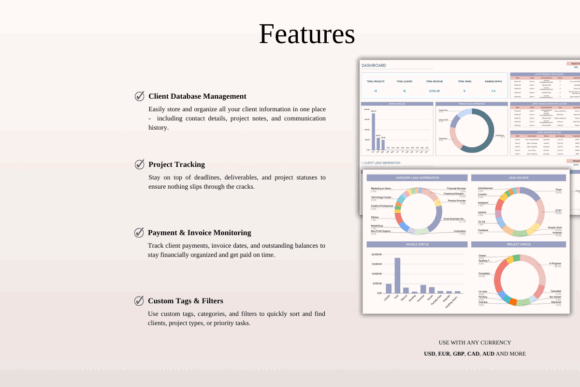
This two-template toolkit connects client relationship management with active project delivery. One spreadsheet focuses on contacts, communication, and pipeline activity, while the other organizes projects, timelines, services, and payment statuses.
I would pick this for a design business that wants to track a prospect from first inquiry through final delivery. Maintaining two connected files can add setup work, but the separation is helpful when sales conversations and production details have become crowded in one oversized sheet.
Best for: design leads, client pipelines, service delivery
Key features: CRM tracker, project tracker, communication logs, dropdown fields
8. CRM Spreadsheet Template Google Sheets
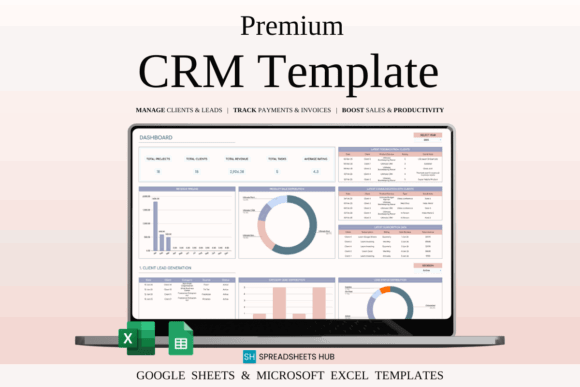
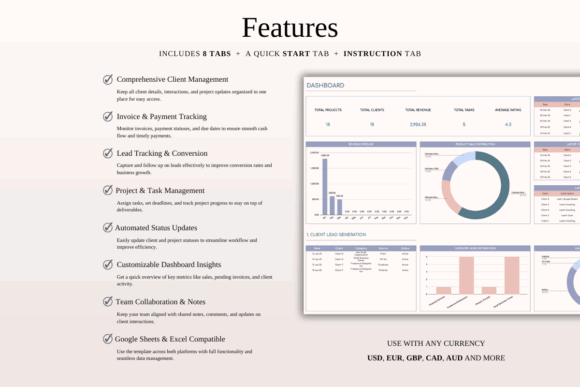
This CRM spreadsheet is built for organizing customer data, communication history, follow-up tasks, client categories, and business reporting. For designers, it can serve as the relationship layer that sits before and alongside the actual creative production schedule.
I would use it when missed emails and inconsistent follow-ups create more trouble than missed design tasks. It is less useful as a detailed deliverables tracker, so pairing it with a separate Kanban or project sheet would create a more complete studio system.
Best for: inquiry follow-up, repeat clients, communication records
Key features: customer database, interaction history, reminders, reporting
Download CRM Spreadsheet Template
9. Content Calendar, Google Sheets
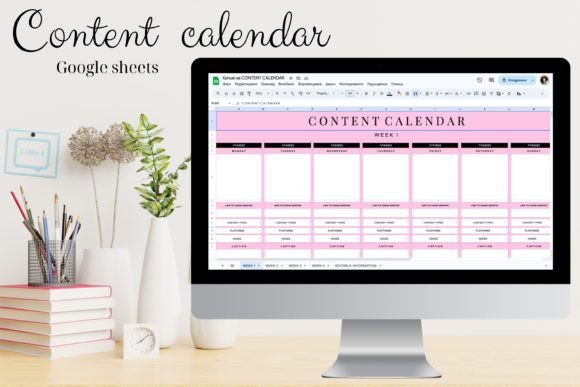
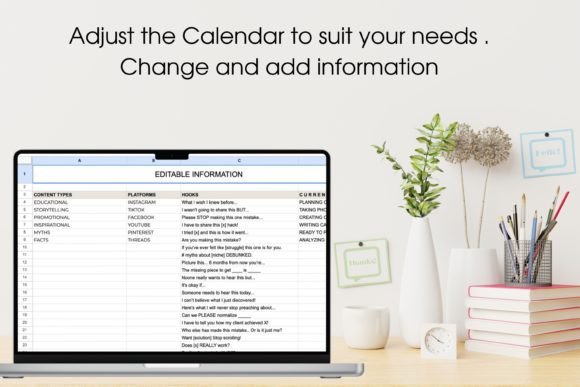
This Google Sheets content calendar is for designers managing graphics tied to publishing schedules rather than isolated client jobs. It can help organize social posts, campaign assets, content topics, planned dates, and the production work needed before each item goes live.
My pick for content designers and marketing teams, it keeps visual deliverables connected to their strategic purpose. It will be less appropriate for logo or packaging projects, where milestone tracking and formal approval stages matter more than publication frequency.
Best for: social campaigns, editorial graphics, content marketing
Key features: publishing calendar, content planning, scheduling, campaign organization
Download Content Calendar Template
10. Social Media Content Planner Excel
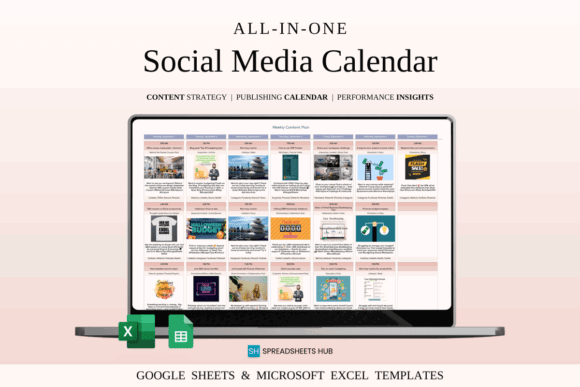
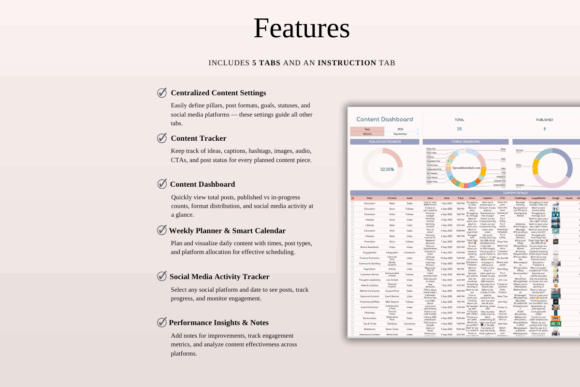
This social media planner supports designers producing recurring platform graphics, videos, captions, and campaign assets. Its Google Sheets and Excel compatibility makes it suitable for collaborative planning between a designer, content writer, social media manager, and approving client.
I would choose it for a monthly retainer workflow where the team needs visibility from idea through publication. It may be excessive for occasional social posts, but structured content production benefits from consistent fields for channels, themes, dates, status, and ownership.
Best for: social media retainers, campaign batches, content teams
Key features: content planning, scheduling, production organization, collaborative spreadsheet format
Download Social Content Planner
11. Billing Invoice Template Google Sheets
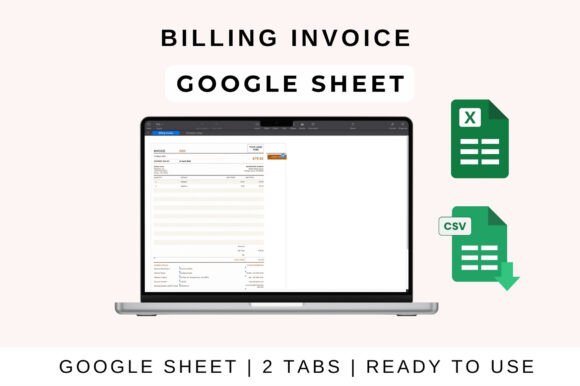
This billing template gives freelance designers a structured way to create invoices, organize transaction details, and automate common calculations. It supports Google Sheets, Microsoft Excel, and Apple Numbers, which is useful when clients or collaborators do not share the same preferred software.
I see this as a supporting project-management tool rather than the central workspace. It can reduce billing errors at delivery time, but designers still need a separate system for estimates, signed agreements, deposits, revision limits, and overdue-payment follow-up.
Best for: freelance billing, service invoices, project closeout
Key features: automated calculations, editable billing fields, tax and discount support, multiple spreadsheet platforms
Download Billing Invoice Template
12. Time-Saving Spreadsheet Bundle
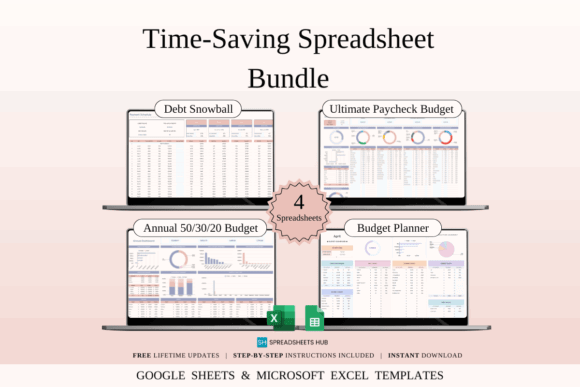
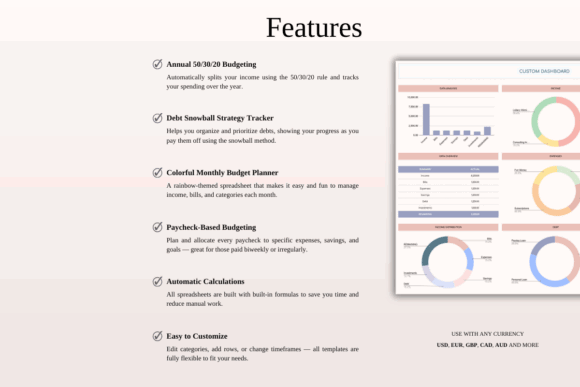
This spreadsheet bundle is for creative business owners who need broader administrative support instead of one specialized project tracker. Its collection format can help consolidate multiple planning and business-management functions in compatible Google Sheets and Excel files.
I would consider it for a growing solo studio that needs several systems at once but is not ready for subscription software. The tradeoff is that bundles often contain more files than one person will maintain, so select a small core set and archive the rest rather than duplicating information everywhere.
Best for: growing studios, business administration, multi-purpose planning
Key features: multiple spreadsheets, Google Sheets compatibility, reusable formats, broad workflow coverage
How to Choose a Design Project Management Spreadsheet
Start with the point where your current workflow breaks down. A Gantt chart helps when changing dates affect later tasks, while a Kanban board is better when you primarily need to see which stage each asset has reached. Client trackers solve a different problem: keeping communication, contacts, projects, and payment details connected.
Before importing live client work, check whether the template lets you rename statuses, add collaborators, protect formula cells, filter by project, and create an archive for completed jobs. I also recommend testing it with one fictional project. A template that takes too much effort to update will quickly become another abandoned file.
Read More: Just like Google Sheets templates can streamline project management, leveraging dedicated 11 Daily Digital Planner Pages for Focused Planning can significantly improve your personal daily organization.
Final Thoughts
A good design project spreadsheet should make the next action obvious. My first pick for broad studio oversight is the Project Management Spreadsheet Template, while the Gantt Chart Template is stronger for complex timelines and the Kanban Board Template is easier for visually tracking production stages.
The most elaborate option is not automatically the best one. Choose the lightest template that captures the information your projects genuinely need, customize its language around your creative process, and keep updates simple enough that everyone will use it.
Frequently Asked Questions
What is the best Google Sheets template for managing design projects?
u003cstrongu003eThe best general option is a project management spreadsheet with tasks, owners, priorities, dates, and progress reporting.u003c/strongu003e For a more specific workflow, use a Gantt chart for dependencies, a Kanban board for production stages, or a client tracker for managing communication and payments. The right choice depends on the type and volume of design work you handle. A solo logo designer may need only a clean task tracker, while a studio producing campaigns across several channels will benefit from a dashboard, calendar, and responsibility fields.
Can Google Sheets replace project management software for designers?
u003cstrongu003eGoogle Sheets can replace dedicated software for freelancers and small design teams with straightforward workflows.u003c/strongu003e It provides collaboration, filters, formulas, dropdowns, and customizable views without requiring everyone to learn another platform. It becomes less practical when a team needs automated dependencies, granular permissions, integrated proofing, advanced resource planning, or a large volume of notifications. At that point, the spreadsheet may still serve as a reporting layer while specialized software handles production.
How should I organize a graphic design project in Google Sheets?
u003cstrongu003eOrganize each deliverable by project, stage, owner, priority, internal due date, client deadline, and approval status.u003c/strongu003e Add links to the brief and working files so the spreadsheet acts as a central index without becoming the storage location for every asset. For larger jobs, create separate views for milestones, individual tasks, client feedback, and billing. Keep status labels consistent across projects so filters and dashboard formulas continue to provide useful information.
What columns should a design project tracker include?
u003cstrongu003eA useful design project tracker should include the client, project, deliverable, assignee, status, priority, start date, internal deadline, client deadline, and approval status.u003c/strongu003e Optional columns can cover estimated hours, revision rounds, file links, invoice status, and final delivery dates. Avoid adding fields merely because a template provides them. Every extra column creates maintenance work, so retain only the information that supports scheduling, accountability, communication, or a clear business decision.



Follow Us